


multiwindow
Multi-window provide a rectangle area to show assigned window.
Click  icon on the
Toolbox,it will pop up a multi-window dialog,as shown figure 4-136.
icon on the
Toolbox,it will pop up a multi-window dialog,as shown figure 4-136.
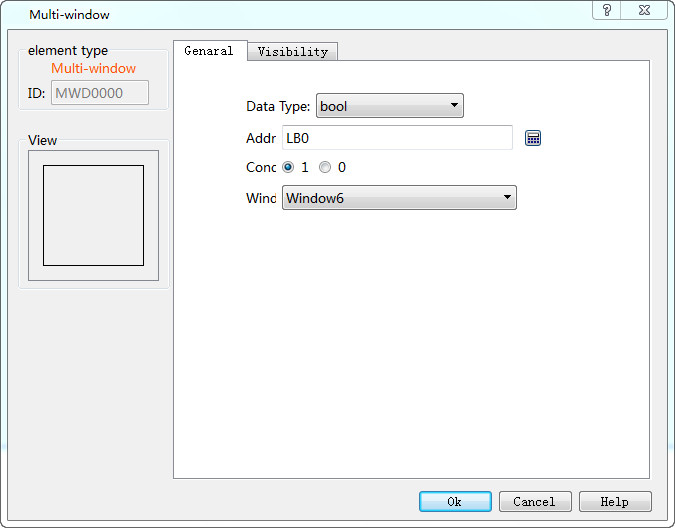
Figure 4-136 Multi-window dialog
Ø Data Type:the Type of data that control the showed window.include of bool and word.
“bool”:opening the assigned window on the rectangle area are judged by suit the condition.
“Word”:Choose the control address,and check “Bind with window”or “Not bind with window”,as figure 4-138 shown.
Ø Address:the value of address controls the window opening;
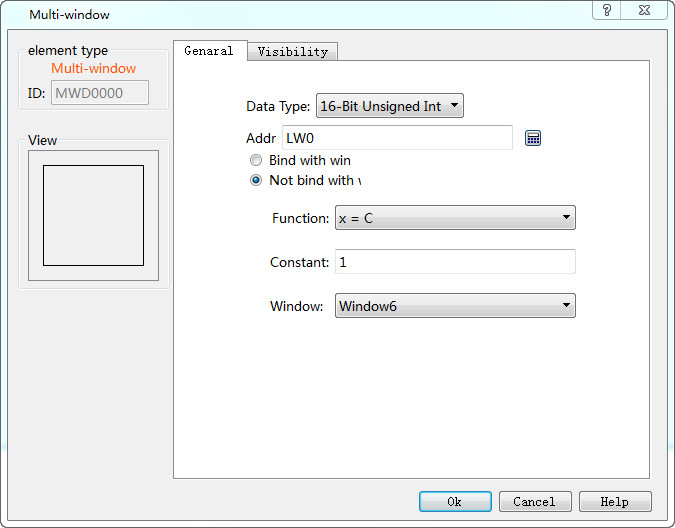
Figure 4-138multi-window dialog
“Bind with window”:The value of address is the ID of assigned window.
“Not Bind with window": Check a function,when fit the condition of function,open the assigned window.The functions is as shown follow。
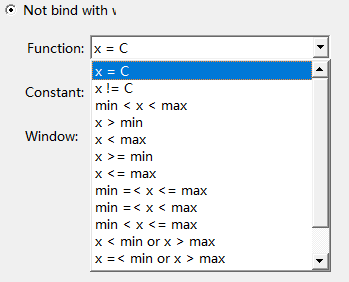
Figure 4-139
Refer to “Bit button” for the application of “Visibility” page.
After setting parameter of multi-window,click”ok”,drag mouse on Picture area window,and create a rectangle area.The area would display the multi-window,as shown figure 4-140.
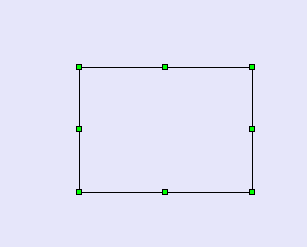
Figure 4-140

When creating a new window,”Top window” is defaulted,as shown follow.It means that you can not operate other screen or window when this window pop up. So you should add a screen button on the window to close it.
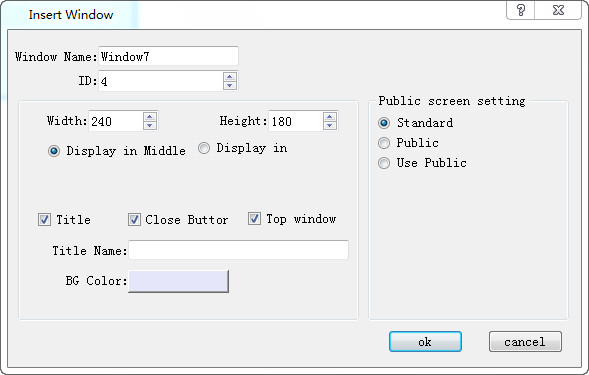
Figure 4-141 window property