


Radio Button
This command is applied
to create a radio button control in the current screen to switch to a certain
state selected by user. Click the button icon to pop up a dialog box as shown in Figure 4-114:
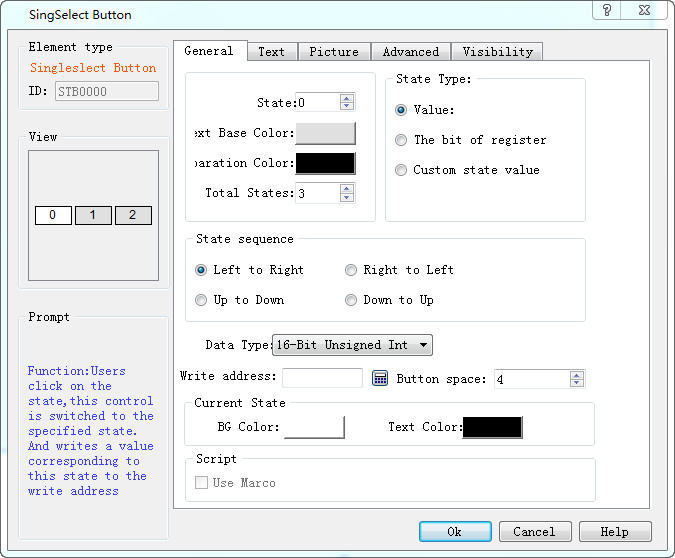
Figure 4-114 Radio Button dialog box
State sequence: Direction of the text on the control
For example, if the total number of states is 3, then texts of State 0, State 1 and State 2 are 0, 1, 2 respectively.
l Left to Right: The control is placed horizontally, ie the text is oriented from left to right: 0, 1, 2
l Right to Left: The control is placed horizontally, ie the text is oriented in a right-to-left orientation: 2, 1, 0
l Up to Down: The control is placed vertically; the text direction is in accordance with the direction from top to bottom: 0, 1, 2
l Down to Up: The control is placed vertically; the text direction is in accordance with the direction from bottom to top: 2, 1, 0
State Type: Refer to that of the "Multi-state Indicator Lamp".
Current state: Set the background color and text color of the text in the current state.
Refer to “Multi-state Indicator Lamp” for the parameter settings of pages of Text, Picture.
Refer to Bit button for the applications of “Advanced” and “Visibility”.