


Picture Display
Picture Display is an extension of the Static picture control, because the Static picture can only display one picture while Picture display can display up to 32 pictures. Picture display may have different definitions according to different status categories selected by user.
Steps are as follows:
Click the icon of
the Picture display on the toolbar. The dialog box shown in Figure 4-110 pops up:
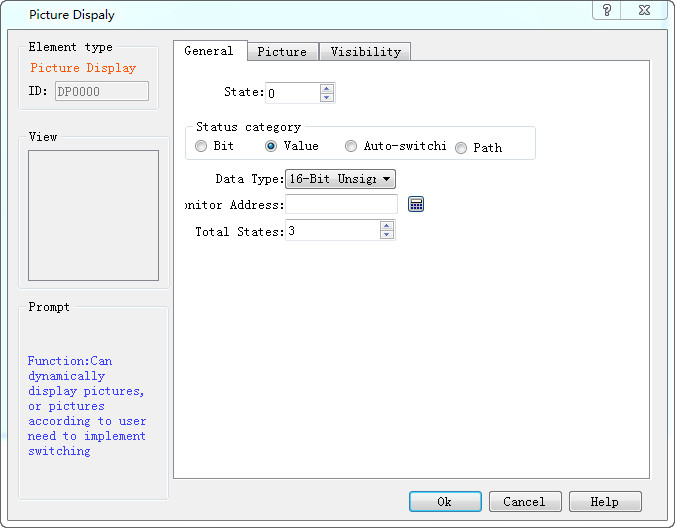
Figure 4-110 Picture Display dialog box
l Bit: When Bit is selected, the total number of states is only two, state 0 and 1. Monitor address can only be a bit address. The control displays the corresponding picture based on the state 0 or 1 of the monitor address.
l Value: When the Value option is selected, the total number of states can be up to 2048, and different pictures are displayed according to the value of the monitor address. When the value of the monitor address is 0, the picture under the state 0 is displayed, and so on.
l Auto-switching: When the auto-switching option is selected, the total number of states can be up to 2048, and the control does not need to change pictures according to the value of the monitor address, as long as user sets the total number of states; then set the automatic transformation frequency. If it runs in the HMI, the control will switch pictures automatically within the range.

Note: The "Picture" page of the Picture Display is similar to that of the "Multi-state Indicator Lamp" control that you can refer to.
Note: Refer to the "Bit button" control for the application of “Visibility”.
After the settings, click "OK" to add the control to the view area (the screen).