


install
SKTOOL is an application software designed for Microsoft Windows 32-bit system. Before installing the software, please make sure that the computer software and hardware meet the minimum requirements for installation.
Execute the installation disk distributed with the product to install SKTOOL. Specific steps are as follows:
Start Windows;
Insert the disc in the appropriate drive;
Contents of the disc are as shown in Figure 2-1, please verify them:
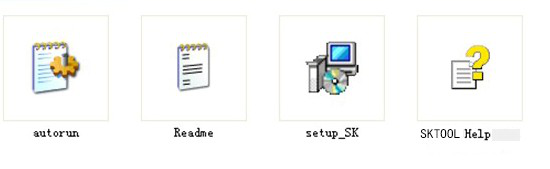
Figure 2-1 Disk content
Please contact us if anything is missing. Thank you for your support and we will serve you sincerely.
After inserting the disk it will automatically pop up SKTOOL setup window (if there is no pop-up window, directly open the disc, execute the file setup_SK.exe.
After launching the installation, a language selection box pops up as follows. According to user’s needs to select English or Simplified Chinese to install the configuration software. Now choose to install this "English" as an example. Select "English", click "OK", and after a few seconds the splash screen will pop up.
In the dialog box, select “Next” to continue the installation or choose “Cancel” to exit the installation program, as shown in Figure 2-3.
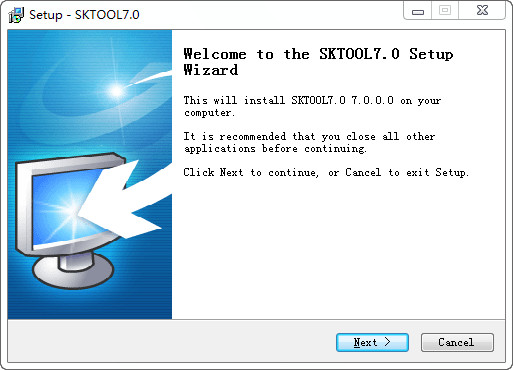
Figure 2-3 Installation Welcome Interface
In the License Agreement dialog box, please choose whether to accept the terms of the software, and then click Next, as shown in Figure 2-4:
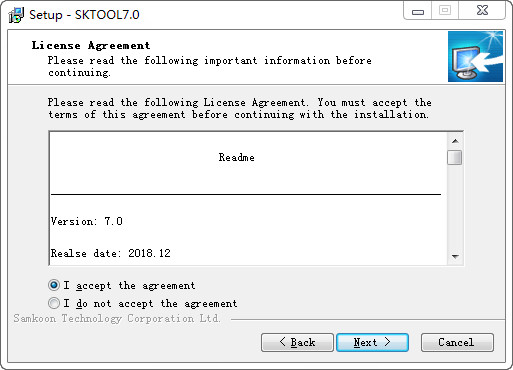
Figure 2-4 License Agreement dialog box
In the Destination Folders dialog box, select the installation folder. The default folder is "C: \ Program File \ SKTOOL6.2\", click Change can select the installation path, then click Next
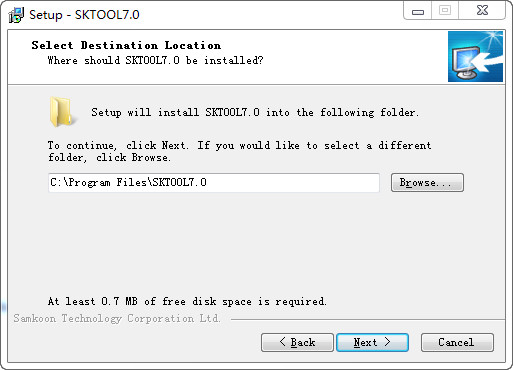
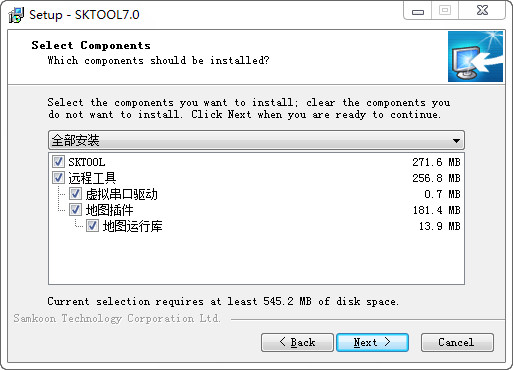
Figure 2-5 Installation Path Interface
Click Next in Figure 2-5, a selection interface shows where to store the file, the default file or others; click Next, as shown in Figure 2-6:
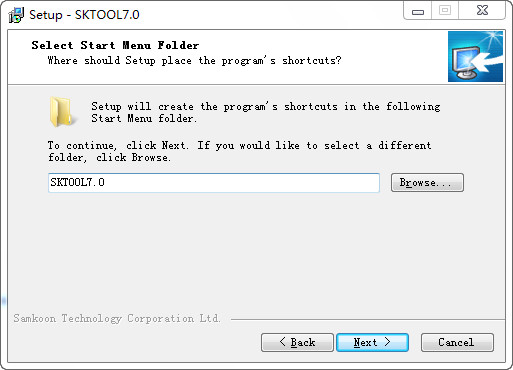
Figure 2-6 Installation File Interface
Whether to Create Desktop Shortcut Interface, click Next, as shown in Figure 2-7:
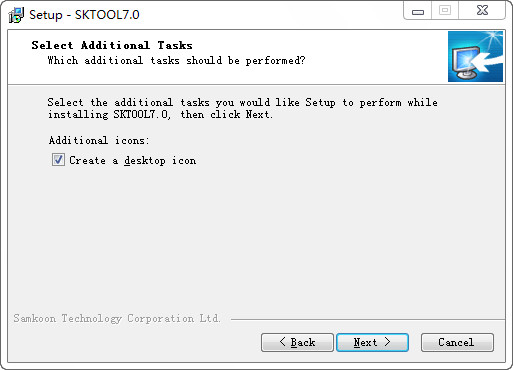
Figure 2-7 Whether to Create Desktop Shortcut Interface
Installation confirmation interface shows three elements: the installation path, files for the installation and whether to create a shortcut.
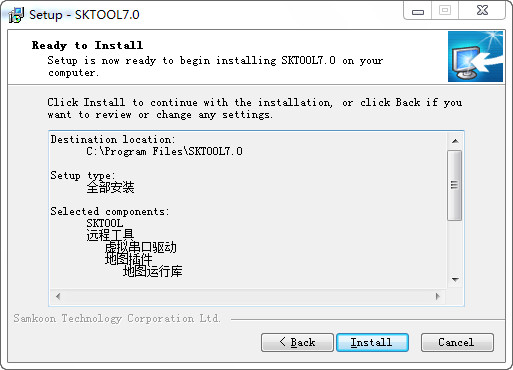
Figure 2-8 Installation Affirmation Interface
Installation Interface,Click Cancel to cancel the installation. As shown in Figure 2-9:
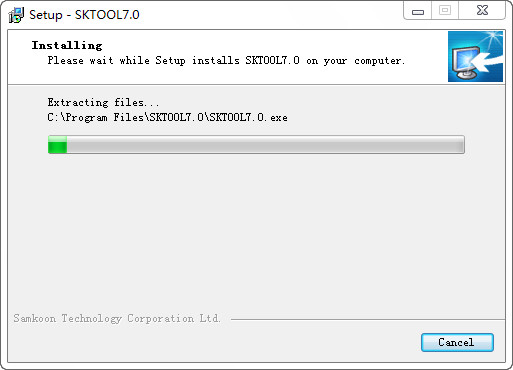
Figure 2-9 Installation Interface
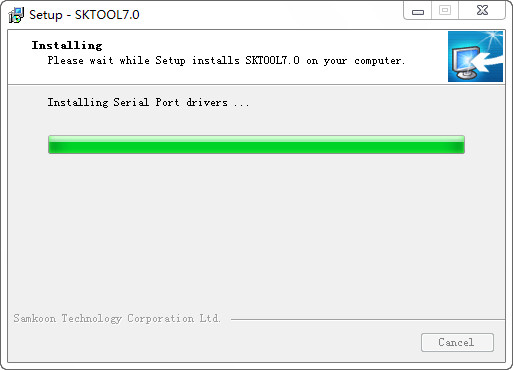
Having installed the software, it will install USB driver automatically. As shown in Figure 2-10:
Having installed the driver, it will display Installation Completed Interface; click Finish to end the installation guide. As shown in Figure 2-11:
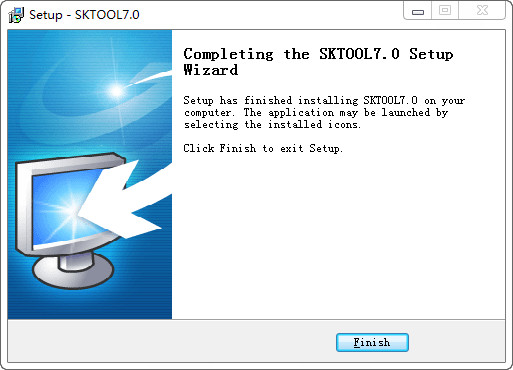
Figure 2-11 Installation Completed Interface
After the installation, the SKTOOL6.2 icon will appear on the desktop. As shown in Figure 2-12:

Figure 2-12 desktop shortcut
If installation CD is unavailable, please download the corresponding download package on Samkoon official website.