


1. Using a program editor
Open the program in the program editor using one of the following methods:
In the "Operations" area of the "File" menu ribbon, click the "New" or "Open" buttons to open the software project。
Expand the program folder in the Engineering Explorer by clicking on the branch to expand it
 Icon or double-click folder item
 。Find the program item in the folder and double-click to open the program; You can also select the corresponding program item and press Enter.
The composition of the program editor is as follows:
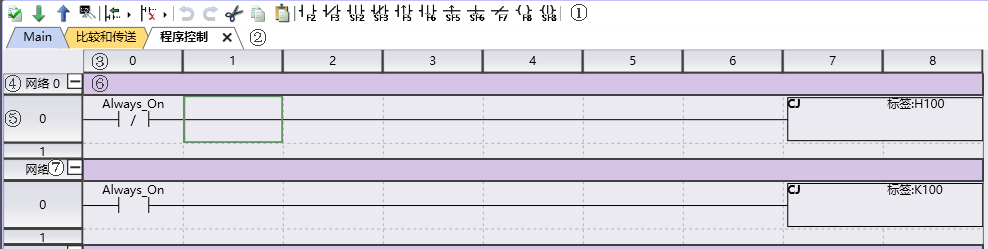
图1 figure 1.1 program editor
① Toolbar: List some commonly used operation icons.
② Program tag card: Switch between different programs for viewing and editing. The close button (X) can close this label.
③ Column ruler button: Click to perform operations on the current column. Including inserting and deleting columns, etc.
④ Network button: Click to perform operations on the current network. Including inserting and deleting networks, etc.
⑤ Line ruler button: Click to perform the current line operation. Including inserting and deleting rows, etc.
⑥ Network segment annotation: It is possible to annotate some descriptive information on a network.
⑦ Network unfolding/folding: The display of a network can be unfolded or folded.
1.1. toolbar button#
The toolbar buttons are used to perform operations on the program. The toolbar is located above the program editor for easy execution of common programming operations:
| button group | function |
|---|---|
 |
compile,download,upload and monitor. |
 |
Insert and delete various forms of objects。 |
 |
Revoke the previous operation and restore the next operation. Cut, copy, paste. |
 |
Quickly insert some basic components. |
อ่านเพิ่มเติม

