


toolbox
SKTOOL Toolbox provides a wealth of tool buttons, some of which are functional control buttons, and some are basic controls. After being familiar with these buttons, designers can quickly find the commands they need instead of searching in the menu bar. SKTOOL supports totally 47 function controls and 14 basic controls.
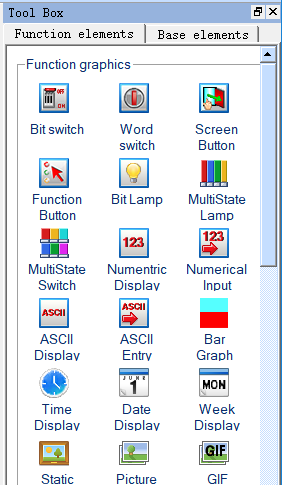
Figure 2-42 Toolbox functional control buttons
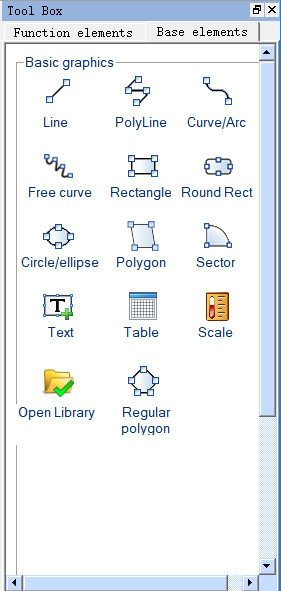
Figure 2-43 Toolbox basic control buttons
Toolbox individual operating controls and menu content corresponding to each other, each button functions are:
 Line: Execute this command to draw a
straight line in any direction within the current screen.
Line: Execute this command to draw a
straight line in any direction within the current screen.
 Polyline: Execute this command to draw a
polyline in any direction within a current picture.
Polyline: Execute this command to draw a
polyline in any direction within a current picture.
 Curve / Arc: Execute this command to draw
a line in the current screen, after finishing drawing by right button, the
radian of drawings can be adjusted as needed.
Curve / Arc: Execute this command to draw
a line in the current screen, after finishing drawing by right button, the
radian of drawings can be adjusted as needed.
 Free line: Execute this command to draw a
line in the current screen in any direction, lines are drawn with the movement
of the mouse.
Free line: Execute this command to draw a
line in the current screen in any direction, lines are drawn with the movement
of the mouse.
 Circle/Ellipse: Execute this command to
draw any size of circle or ellipse in the current screen.
Circle/Ellipse: Execute this command to
draw any size of circle or ellipse in the current screen.
 Rectangle: Execute this command to draw a
rectangle of any size in the current screen.
Rectangle: Execute this command to draw a
rectangle of any size in the current screen.
 Rounded Rectangle: Execute this command
to draw any rectangle with rounded corners in the current screen.
Rounded Rectangle: Execute this command
to draw any rectangle with rounded corners in the current screen.
 Polygon: Execute this command to draw an
arbitrary polygon in the current screen.
Polygon: Execute this command to draw an
arbitrary polygon in the current screen.
 Arc: Execute this command to draw any
sector in the current screen.
Arc: Execute this command to draw any
sector in the current screen.
 Text: Execute this command to create a
text input on the screen.
Text: Execute this command to create a
text input on the screen.
 Table: Execute this command to create a
table with required ranks in the current screen.
Table: Execute this command to create a
table with required ranks in the current screen.
 Scale: Execute this command to draw a
desired scale.
Scale: Execute this command to draw a
desired scale.
 Open Library: Execute this command to
open the picture library of the system.
Open Library: Execute this command to
open the picture library of the system.
 Bit Switch: Execute this command to
create touch keys for performing bit manipulations to the connected device,
including Set ON, Set OFF, Dot and Invert.
Bit Switch: Execute this command to
create touch keys for performing bit manipulations to the connected device,
including Set ON, Set OFF, Dot and Invert.
 Word switch: Execute this command to set
a touch key for performing word bit operation in the current screen to the
connected device, including Add, Subtract, Increasing, Decreasing, Set Constant,
Enter Value, Enter Password.
Word switch: Execute this command to set
a touch key for performing word bit operation in the current screen to the
connected device, including Add, Subtract, Increasing, Decreasing, Set Constant,
Enter Value, Enter Password.
 Screen Button: Execute this command to
set the switching of screens, including opening screen, open the previous
screen, close and Open screen, Closes screen, Open previous screen and Close
open screen.
Screen Button: Execute this command to
set the switching of screens, including opening screen, open the previous
screen, close and Open screen, Closes screen, Open previous screen and Close
open screen.
 Function Button: Execute this command to set
a certain function control of the operating system, including Turn off
background light, Confirm alarms, Restart HMI, Set screen saver time, Write
recipe to PLC, Read recipe from PLC, Set the date and time, Clear alarm, Switch
to previous recipe, Switch to later recipe, Save current recipe, Screenshots,
System parameters, User login, Cancel the user login, Touch sound ON / OFF,
Alarm sound ON / OFF, Clear all historical data, Clear alarm history, Unlock
HMI protection, read& save recipe, Spare function, Overload recipe, Switch
language, Print screen to printer, Slave devices IP config, DIP switches 1 and
3 feature set.
Function Button: Execute this command to set
a certain function control of the operating system, including Turn off
background light, Confirm alarms, Restart HMI, Set screen saver time, Write
recipe to PLC, Read recipe from PLC, Set the date and time, Clear alarm, Switch
to previous recipe, Switch to later recipe, Save current recipe, Screenshots,
System parameters, User login, Cancel the user login, Touch sound ON / OFF,
Alarm sound ON / OFF, Clear all historical data, Clear alarm history, Unlock
HMI protection, read& save recipe, Spare function, Overload recipe, Switch
language, Print screen to printer, Slave devices IP config, DIP switches 1 and
3 feature set.
 Stepping button: Execute this command to
create a stepping button control in the current screen to realize the cyclic
switching of execution states.
Stepping button: Execute this command to
create a stepping button control in the current screen to realize the cyclic
switching of execution states.
 Single button: Execute this command to create
a single button control in the current screen; click the designated state area,
then the state will switch accordingly.
Single button: Execute this command to create
a single button control in the current screen; click the designated state area,
then the state will switch accordingly.
 Combo box: Execute this command to create
a drop-down box button control in the current screen, for viewing and
selection. Once user selects an item, the corresponding value will be written
into the control address of character buffer.
Combo box: Execute this command to create
a drop-down box button control in the current screen, for viewing and
selection. Once user selects an item, the corresponding value will be written
into the control address of character buffer.
 Slider: Execute this command to create a
slider analog switch control in the current screen; drag the slider to change
the value of corresponding character register addresses.
Slider: Execute this command to create a
slider analog switch control in the current screen; drag the slider to change
the value of corresponding character register addresses.
 Numerical Display: This command is used
to draw on the current screen a numerical display frame reflecting numerical
value of certain monitored address.
Numerical Display: This command is used
to draw on the current screen a numerical display frame reflecting numerical
value of certain monitored address.
 Numeric Input Display: Execute this
command to draw on the current screen a numerical display frame for data input
and digital value display of certain monitored address.
Numeric Input Display: Execute this
command to draw on the current screen a numerical display frame for data input
and digital value display of certain monitored address.
 ASCII Display: Execute this command to
draw on the current screen a numerical display frame for ASCII code.
ASCII Display: Execute this command to
draw on the current screen a numerical display frame for ASCII code.
 ASCII Input Display: This command is used
to draw on the current screen a frame of display and output for the input of
ASCII code.
ASCII Input Display: This command is used
to draw on the current screen a frame of display and output for the input of
ASCII code.
 Bit Lamp: Execute this command to create
on the current screen a picture monitoring the bit status of one single
connected device.
Bit Lamp: Execute this command to create
on the current screen a picture monitoring the bit status of one single
connected device.
 Multistate Switch: Execute this command
to create multi-state button monitoring numerical value changes of single
address of the connected device according to the change of status.
Multistate Switch: Execute this command
to create multi-state button monitoring numerical value changes of single
address of the connected device according to the change of status.
 Multistate Lamp: Place a picture in the
current screen to monitor the word status of multiple consecutive device
addresses.
Multistate Lamp: Place a picture in the
current screen to monitor the word status of multiple consecutive device
addresses.
 Message Display: Execute this command to
display corresponding message information according to different monitoring
address.
Message Display: Execute this command to
display corresponding message information according to different monitoring
address.
 Recipe Selector: Execute this command to
insert on the current screen a recipe control that shows all names of recipes
and enter, monitor contents of RWIO.
Recipe Selector: Execute this command to
insert on the current screen a recipe control that shows all names of recipes
and enter, monitor contents of RWIO.
 Recipe Data Display: Execute this command
to insert a recipe data display control on the current screen, which shows all
the data of recipes if they are set up.
Recipe Data Display: Execute this command
to insert a recipe data display control on the current screen, which shows all
the data of recipes if they are set up.
 Multi-function button: Execute this
command to create a multi-function button in the current screen to realize
multiple functions through one key.
Multi-function button: Execute this
command to create a multi-function button in the current screen to realize
multiple functions through one key.
 Keyboard: Execute this command to insert
a keyboard control on the current screen, which can be any key in the keyboard
when custom the keyboard.
Keyboard: Execute this command to insert
a keyboard control on the current screen, which can be any key in the keyboard
when custom the keyboard.
 Time Display: Execute this command to
insert the time control on the screen to show the time.
Time Display: Execute this command to
insert the time control on the screen to show the time.
 Date Display: Execute this command to
insert the date control on the screen to display the date.
Date Display: Execute this command to
insert the date control on the screen to display the date.
 Week Display: Execute this command to
insert a week control on the current screen to display the week.
Week Display: Execute this command to
insert a week control on the current screen to display the week.
 Static Picture: Execute this command to
insert a static image of the local hard disk on the current screen.
Static Picture: Execute this command to
insert a static image of the local hard disk on the current screen.
 Picture Display: This command is used to
draw a picture display frame on the current screen for displaying a plurality
of pictures.
Picture Display: This command is used to
draw a picture display frame on the current screen for displaying a plurality
of pictures.
 GIF Display: Execute this command to draw
a picture display frame on the current screen to display a static or animated
image suffixed by .GIF.
GIF Display: Execute this command to draw
a picture display frame on the current screen to display a static or animated
image suffixed by .GIF.
 Dynamic circle: Execute this command to
create a dynamic circle in the current screen whose size and location transform
according to the continuous address change of connection device.
Dynamic circle: Execute this command to
create a dynamic circle in the current screen whose size and location transform
according to the continuous address change of connection device.
 Dynamic Rectangle: Execute this command to
create a dynamic rectangle in the current screen whose size and location
transform according to the continuous address change of connection device.
Dynamic Rectangle: Execute this command to
create a dynamic rectangle in the current screen whose size and location
transform according to the continuous address change of connection device.
 Flow block, use this command to create a
simulation control of flow state in the current screen.
Flow block, use this command to create a
simulation control of flow state in the current screen.
 Graph Move: Execute this command to create
a graph display frame in the current screen whose graphic state and location
change according to the continuous address change of connection device.
Graph Move: Execute this command to create
a graph display frame in the current screen whose graphic state and location
change according to the continuous address change of connection device.
 Animation: Execute this command to create
an animation control in the current screen to move the control.
Animation: Execute this command to create
an animation control in the current screen to move the control.
 Meter: Execute this command to create an instrument
on the current screen to monitor the changes of numerical value of single
address of connected device.
Meter: Execute this command to create an instrument
on the current screen to monitor the changes of numerical value of single
address of connected device.
 Arc chart: Execute this command to insert
a sector control on the current screen for reflecting the numerical value of
monitored address.
Arc chart: Execute this command to insert
a sector control on the current screen for reflecting the numerical value of
monitored address.
 Pie chart: Execute this command to insert
a sector control on the current screen for reflecting the numerical value of
monitored address
Pie chart: Execute this command to insert
a sector control on the current screen for reflecting the numerical value of
monitored address
 Bar Graph: Execute this command to insert
a columnar control on the current screen to observe the changes in the
numerical value of monitored address according to the rise and fall or the
right-left traverse of the columnar picture.
Bar Graph: Execute this command to insert
a columnar control on the current screen to observe the changes in the
numerical value of monitored address according to the rise and fall or the
right-left traverse of the columnar picture.
 Trend Chart: Execute this command to
create a trend chart control in the current screen to monitor the change trend
of continuous address value of connection device.
Trend Chart: Execute this command to
create a trend chart control in the current screen to monitor the change trend
of continuous address value of connection device.
 XY Trend chart: Execute this command to
create a XY trend chart control in the current screen to monitor the change of
two continuous address value of connection device.
XY Trend chart: Execute this command to
create a XY trend chart control in the current screen to monitor the change of
two continuous address value of connection device.
 Data group display: Execute this command to create a date group
display control in the current screen to display several groups of data in the trend
chart.
Data group display: Execute this command to create a date group
display control in the current screen to display several groups of data in the trend
chart.
 Historical Trend Chart: Execute this
command to create a historical trend chart control in the current screen to
display historical data in the trend chart.
Historical Trend Chart: Execute this
command to create a historical trend chart control in the current screen to
display historical data in the trend chart.
 Historical record
display: Execute this command to create a historical record display control in
the current screen to display historical data collected.
Historical record
display: Execute this command to create a historical record display control in
the current screen to display historical data collected.
 Historical Alarm display: Execute this
command to create a display control of historical alarm record in the current
screen to show historical alarm data.
Historical Alarm display: Execute this
command to create a display control of historical alarm record in the current
screen to show historical alarm data.
 Alarm display: Execute this command to
create an alert box control in the current screen to display the date, time and
message of each alert.
Alarm display: Execute this command to
create an alert box control in the current screen to display the date, time and
message of each alert.
 Alarm Bar: Execute this command to create
an alert bar in the current screen to scroll display alert information.
Alarm Bar: Execute this command to create
an alert bar in the current screen to scroll display alert information.
 Operation log: Execute this command to
create an operation log display frame in the current screen to display the
time, user and contents of the operation.
Operation log: Execute this command to
create an operation log display frame in the current screen to display the
time, user and contents of the operation.
 Timer: Execute this command to create a
macro timer in the current screen to control the execution of the macro.
Timer: Execute this command to create a
macro timer in the current screen to control the execution of the macro.
 Message Board: Execute this command to
create a message board control in the current screen where users can write.
Message Board: Execute this command to
create a message board control in the current screen where users can write.
 QRcode: Execute this command to create a
QR code control in the current screen to display character or number with the
help of input control.
QRcode: Execute this command to create a
QR code control in the current screen to display character or number with the
help of input control.
 Corner
flow block: Execute this command to create a Corner flow block control in the
current screen to display the shape and flow speed.
Corner
flow block: Execute this command to create a Corner flow block control in the
current screen to display the shape and flow speed.
 Multi-Window:
Execute this command to create a multi-window control in current screen to
display the assigned window.
Multi-Window:
Execute this command to create a multi-window control in current screen to
display the assigned window.
 :Scroll bar control to draw different types of scroll bars for table
data browsing
:Scroll bar control to draw different types of scroll bars for table
data browsing
 :Pipeline control, and the control of a scroll bar