


introduction
The functional controls are arranged in script editor window as shown in Figure 5-3 (Script Editor).
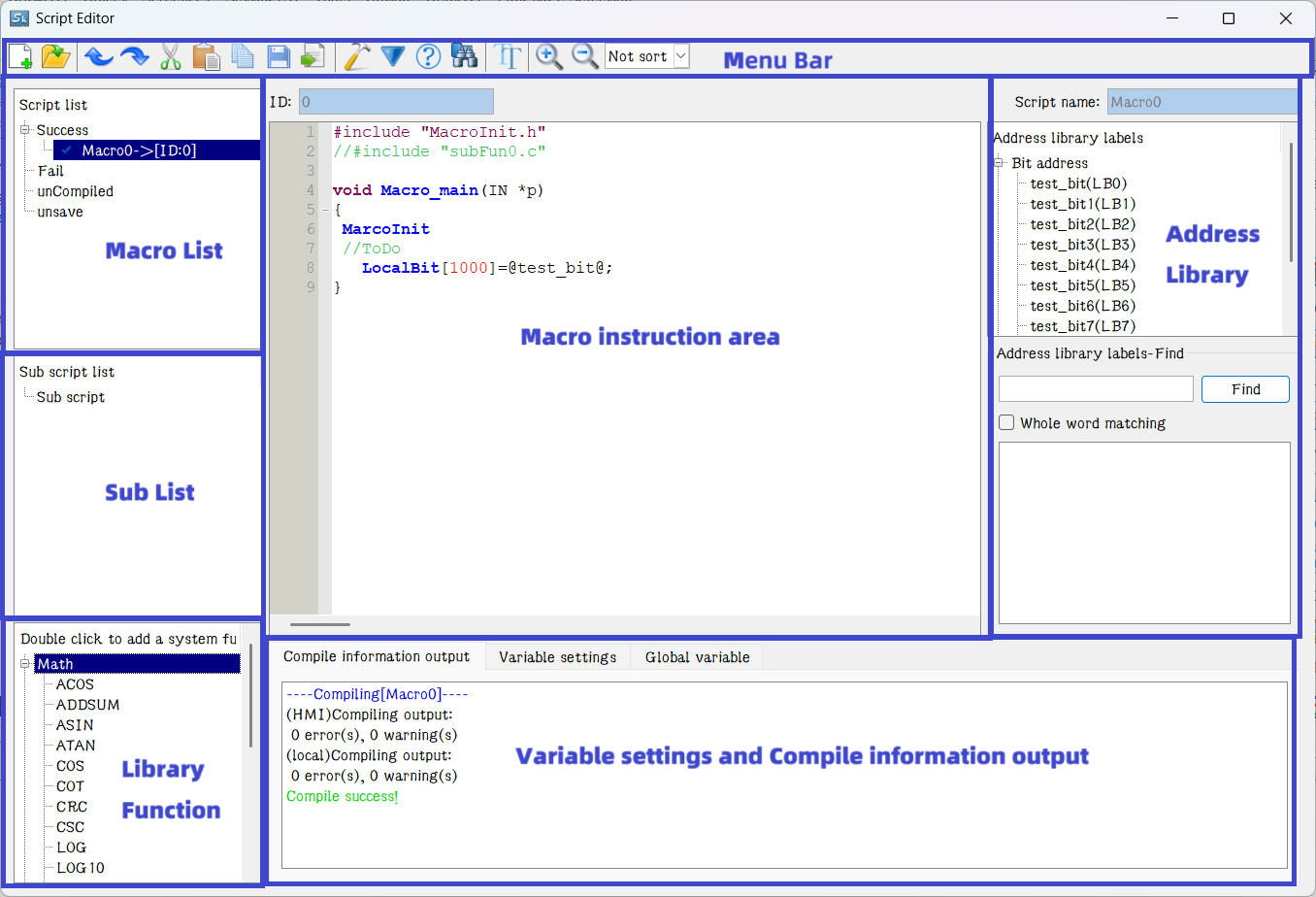
Figure 5-3 (Script Editor)
<1> Script List:
1.  New: new create a script
2.  Import: import an existence script.
3. Success: the scripts have been successful completed
4. Fail: the scripts have been failed completed
5. Not complited:the scripts have not been completed
6. Not save: the scripts have been saved
7. Delete:left click’ chooses the script,then ‘right click’ pop out ‘Deletes script’,click the delete
8. Macro instruction encryption: support single encryption and whole group encryption
9. Macro command export: support single export and whole group export
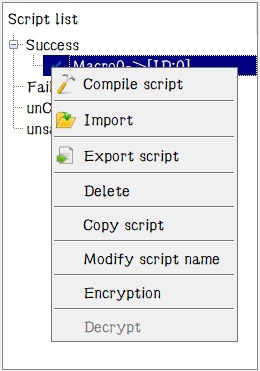
<2> Script Edit window: Edit and compile script on this window。 “ID”:The number of the current edit script,“Script”:Modify the name of the current edit script.
 :Script Edit Menu : >there are ten button
totally as fllows :
:Script Edit Menu : >there are ten button
totally as fllows :
 Undo :cancel the last operation.
 Redo:redo
the next operation.
Redo:redo
the next operation.
 Cut:cut
the choosed script.
Cut:cut
the choosed script.
 Paste:paste script.
 copy:copy
script.
copy:copy
script.
 Save:save
script.
Save:save
script.
 Export:Pop the file save dialog,modify the root and
name,save the script as a *.csv file.
Export:Pop the file save dialog,modify the root and
name,save the script as a *.csv file.
 Compile:Compile the current script source code, and check the syntax error.
 Pack/Show the setting and output
window.
Pack/Show the setting and output
window.
 Help:Show the help file.
 :
Setting the macro instructions automatically sort by id
:
Setting the macro instructions automatically sort by id
<3>Setting and output window:the window sets variable and outputs compiled information.
“Variable Setting Page:click the newgrid in this page it will pop out the New script variables dialog, as shown in figure5.6.The variable associated with the register.
Macro variables: support local variables (visible to the current macro instruction) and global variables (visible to all macro instructions)
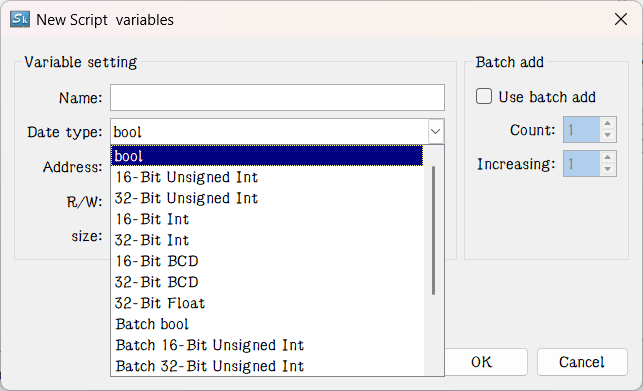
Figure5-5 New script variables
Bool : bool type with only two values true and false.
16-bit unsigned int: A value range from 0 to 65535, represented using 16 binary bits, used solely for representing non-negative integers.
32-bit unsigned int: A value range from 0 to 4294967295, represented using 32binary bits, suitable for representing larger non-negative integers.
16-bit int: An integer represented using 16 binary bits, witch can be eithernegative or positive.The value range is from -32768 to 32767.
32-bit int: An integer represented using 32 binary bits, supporting both negativeand positive values with a range from -2147483648 to 2147483647.
16-bit BCD: A binary-coded decimal number represented in 16 bits, where eachdigit is encoded using 4 bits. it can represent up to four decimal digits ( 0 to 9999 )
32-bit BCD: A binary-coded decimal number represented in 32 bits, where each digit is encoded using 4 bits. it can represent up to 4 decimal digits(0 to 99999999)
32-bit Float: A floating-point number represented in 32-bits, following the IEEE754 standard, commonly used to represent values with decimal parts, supporting awide range of values and precision.
Batch Bool: A collection of boll value, typically used to handle multiple logical conditions or states.
Batch 16-bit unsigned int:A collection of 16-bit unsigned int, suitable forprocessing multiple non-negative integers simultaneously.
Batch 32-bit unsigned int: A collection of 32-bit unsigned int, suitable forprocessing multiple larger non-negative integers simultaneously.
Batch 16-bit int: A collection of 16-bit int, suitable for processing multiplepositive and negative integers simultaneously.
Batch 32-bit int: A collection of 32-bit int, suitable for processing multipleintegers within a larger range simultaneously.
Batch 16-bit BCD: A collection of 16-bit BCD-encoded unsigned integers. Suitablefor hanging multiple decimal positive integers.
Batch 32-bit BCD: A collection of 32-bit BCD-encoded unsigned integers. Suitablefor hanging multiple larger range decimal positive integers.
Batch 32-bit float: A collection of 32-bit floating-point numbers. Suitable forprocess multiple value with decimals simultaneously.
<4>Compile information output Page: The window outputs the information of compilation and connection state of program. Users may make debugging and modification according to the information prompt.
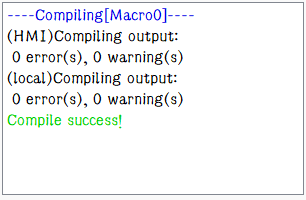
Figure5-6 Compile information output
<5>Used to enter the relevant macro command function into the macro command edit window. First, move the mouse cursor to the macro instruction editing window to add the function of the location, and then in this window, double-click to select the desired function, the function will be automatically inserted into the macro instruction editing window at the mouse cursor.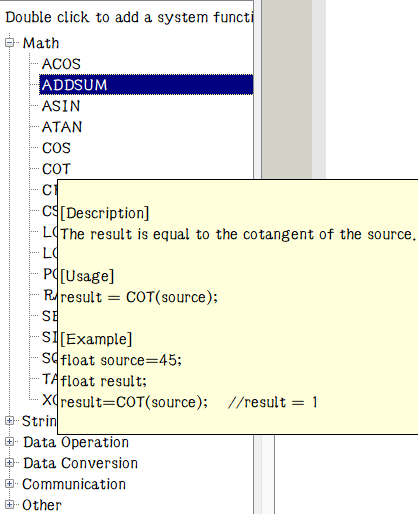
When you select a built-in function, you can hover your mouse over the function to see a description of the function and an example of how to use it.
<6>Address library label display area: address library has been set up address library label will be displayed here, double-click the corresponding address label can be entered into the current program written in the format of "@ label name @", while the use of this label can be directly on the target address to operate the use of the label
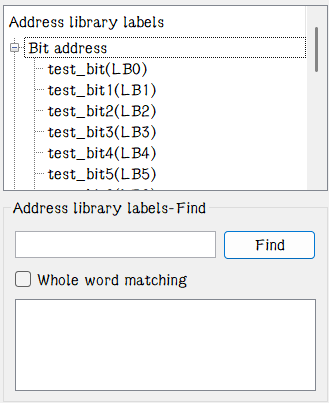
Figure 5-9 Address Bank Label Display Area
Here can be all the address library has been set to show the label, when too many items can be set through the label to find the function of the specified label to quickly find, but also supports the format of the whole word match to find, find the results will be displayed in the search box below.
The detail call format is as follows:

Address library labels can only be used by macro instructions.
อ่านเพิ่มเติม

