


New create macro
A few points to note about macros:
When the "Macro command editing" is turned on, open the function control containing the call macro command, and modify the settings of all function controls containing the call macro command. Circumstance Switches the use of the current function control macro according to whether the current macro in the "macro command editor" is compiled successfully or not.
When the "macro command editor" is turned on, close/open/create/exit the configuration project, and close the "macro command editor" first.
Compiling a single macro and compiling a macro for the entire configuration cannot be performed at the same time.
Click  button and create a new script
on the “Not save” list as shown in Figure 5-4 (Script Compiler)
button and create a new script
on the “Not save” list as shown in Figure 5-4 (Script Compiler)
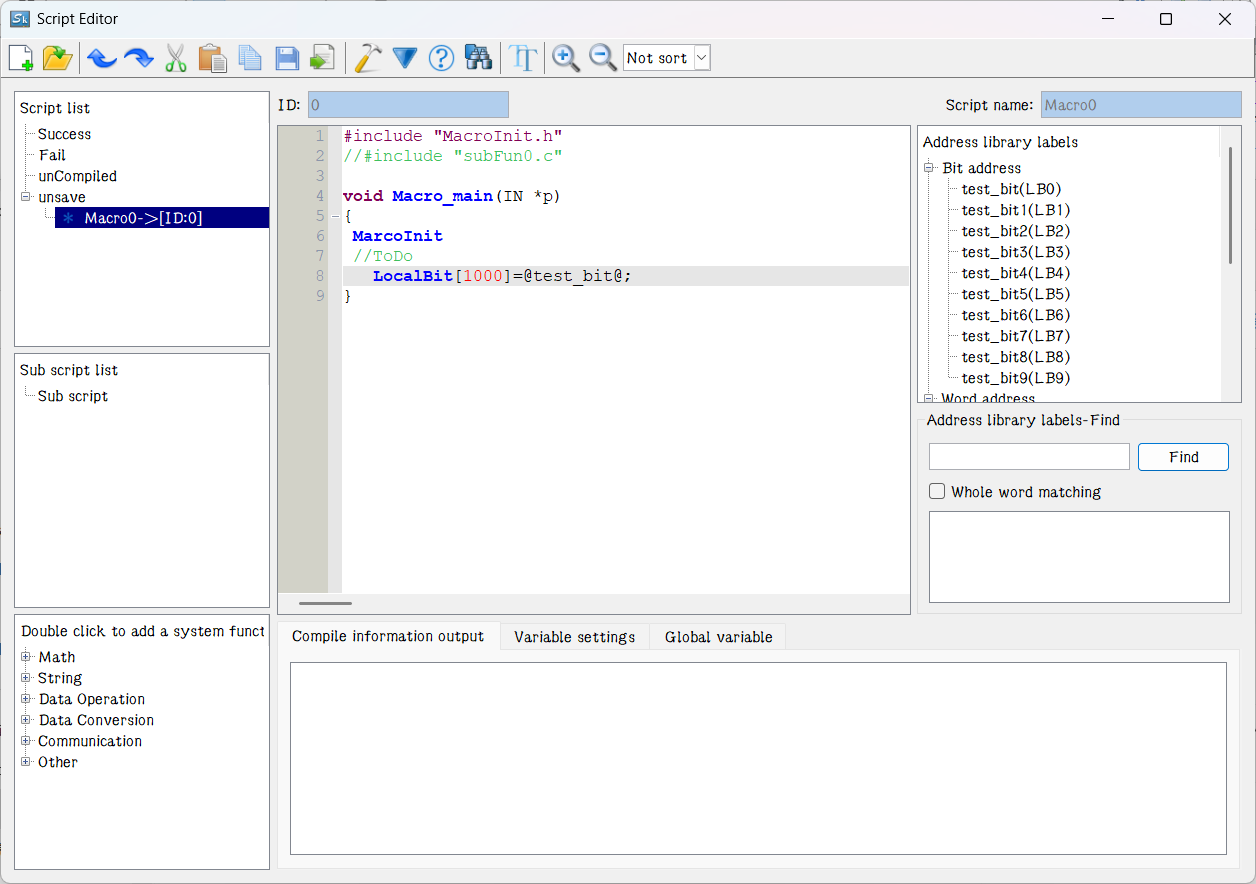
Figure 5-4 (Script Compiler)
Instructions:
Instruction 1: convention introduction of program compilation
Create the source program of C language conforming to ANSI C standard in the edition window.
Instruction 2: information output window
The window outputs the information of compilation and connection state of program. Users may make debugging and modification according to the information prompt.
Instruction 3: variable setting
Variable name: input the variable name required in the program.
Data type: select the corresponding data class of variable name so as to distribute the corresponding memory size.
Bytes: set the occupied memory of corresponding variable automatically depending on the data class.
Read/write: set the read-write property of variable in the memory cell of touch screen.
Address: the defined physical memory address of variable in the touch screen.
Instruction 4: Subroutine List
This window displays the user's own written subroutine code. When using a macro instruction, you can fill in the subroutine that performs a certain function, and you need to write a subroutine reference in the instruction section.
Instruction 5: library function
Users can use the software's built-in function library here, when hovering over the corresponding function, you can see the function's explanation and sample use, double-click to add the function to the code for quick use.
Instruction 6: address library
All the address labels set by the user will be displayed here, divided into "word" and "bit" categories, of which word type labels need to indicate the number type before they can be displayed here.Double-click the corresponding address label, the label will be displayed in the program, the form of "@ label name @", you can directly on the label defined by the address of the value of direct operations.Address library labels can only be used by macro instructions/p>
Variable setting instruction: when the external requires interaction with touch screen such as data exchange and data acquisition, it provides the interface to change the behavior characteristics of touch screen dynamically.
Special tips: the variables required in the program should be put in the variable definition part (the variable definition starts from code).
Macro commands note a few things:
With "Macro Edit" on, open the function control that contains the macro command, and modify the macro command of all function controls that contain the macro command. The current macro usage of the functional control is switched according to whether the current macro is compiled successfully or not in the "Macro Editor".
If "Macro Command Editor" is open, closing/opening/newing/launching a configuration project takes priority over closing "Macro Command Editor".
Individual macro instruction compilation cannot be done at the same time as compiling macro instructions for the entire configuration.
Variable Setting Usage Description: This variable sets the usage of the function, when the external needs to interact with the touch screen. Such as data exchange, data collection, etc., provides an interface to dynamically change the behavioral characteristics of the touch screen.
Special Note: Variables that are required to be used in the program are uniformly placed in the variable definition section (variable definitions are uniformly placed at the beginning of the code).
About the use of the batch data function in the new variable of the macro command
Creating batch data is similar to the array function, and data in continuous memory can be processed directly by subscripting.