


Download configuration engineering
When complete the editing of configuration, you need to click the
button on the toolbar or employ the shortcut Ctrl + S, and then click
 or execute the Compile
command in the Download menu to compile. During the compilation, the
information output window will show the situation in real time. It can’t
complete the compilation if error exists. As shown in Figure 3-11:
or execute the Compile
command in the Download menu to compile. During the compilation, the
information output window will show the situation in real time. It can’t
complete the compilation if error exists. As shown in Figure 3-11:

Figure 3-11 Prompt of compiling error
You can modify it according to the error hint in the information output window; or you can also double-click the error, then SKTOOL will automatically find the wrong object as well as select it. So engineers can double-click on the object to view its property settings, find the reason of the error and make appropriate alterations. After click the Save button to compile and execute the command again. If there is no error, the system will pop up a dialog box indicating successful compilation after a while. At last, click OK to finish it, as shown in Figure 3-12:

Figure 3-12 Information output window

It’s necessary to compile before downloading while the step of conservation is required before compiling. Otherwise it will fail to compile, as shown in Figure 3-11. After compilation, if you modify again, you need to compile again. There is a limit on the size of the compiled file. Click "View Compiled File" in the "Tools" menu bar to view the details.
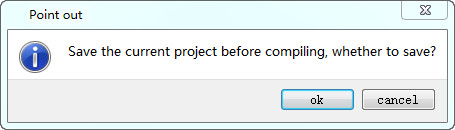
Figure 3-13 Compiling reminder
Finally, execute the command USB in Download menu to download through USB cable; engineers can also directly select the command Compile + Download in Download menu. The implementation of the operation brings up the following pop-up dialog box in Figure 3-12:
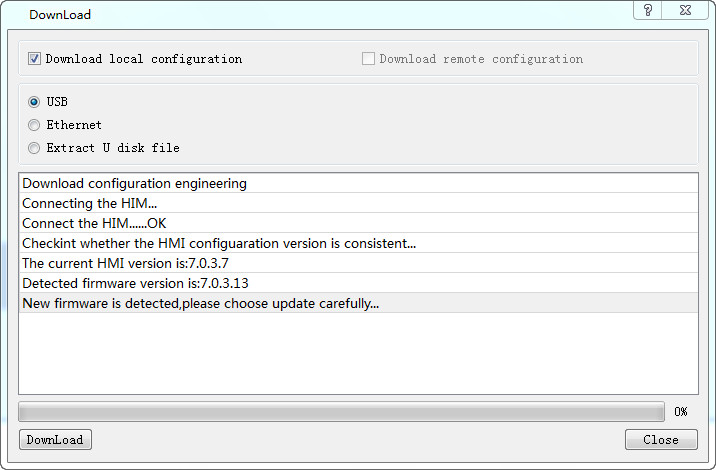
Figure 3-14 Download dialog
Click to download; the middle progress bar shows the downloading progress. After the downloading, a pop-up window shows the completion of USB download. Click OK to complete the downloading task, as shown in Figure 3-15:
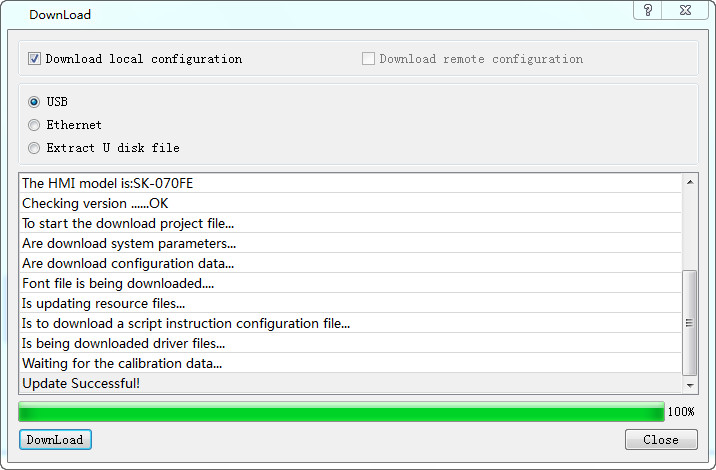
Figure 3-15 Downloading completed
The next step is the connection to the PLC to see whether the configuration project runs correctly in HMI.
Ways of connection between HMI and PLC or PC are shown in “Connection” in Hardware handbook.
Do not cut off the power of HMI, PC or USB cable and avoid other operations during the transmission process; otherwise it will be affected.
Please install the USB drivers before downloading; otherwise the PC will not be connected to HMI. Thus you will not be able to complete the downloading task.
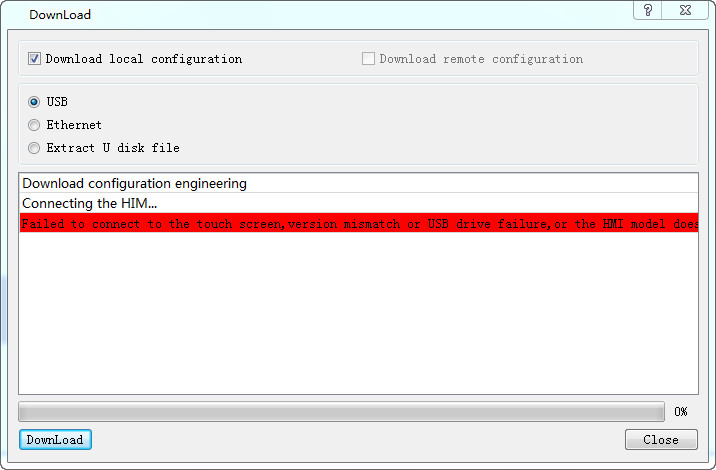
Figure 3-16 USB driver prompt
The pop-up dialog box, as shown in Figure 3-16, means that the PC does not recognize the HMI. Now it is necessary to check whether the USB driver has been installed: Connect the PC and power-on HMI, and then search “Samkoon HMI Tech Corp USB drive” in the Windows "My Computer" - "Properties" - "Hardware" - "Device Manager" - "Universal Serial Bus controllers". (you can try to pull out the USB cable to check if the PC can recognize HMI):
Configuration downloading through Ethernet
Ø Set HMI network parameter settings
Open the dial switch 1 and 3 together; set the IP that can be set accordingly (here set it as 192.168.1.61), gateway, subnet and port. Fix the port to 12345.
Ø Compile the configuration
If select downloading configuration through Ethernet it is necessary to input IP address and port number in the input box. IP is that of the downloading target HMI. The IP here is 192.168.1.61 as above, and the port is fixed to 12345. Then click to restart and download, as shown in Figure 3-18:
Check the automatic search, it will automatically search for the IP of all the screens connected by Ethernet in the LAN, which is convenient for users to choose.
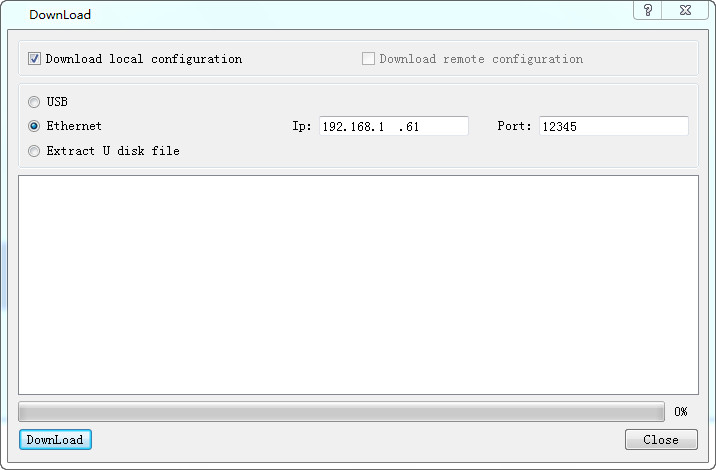
Figure 3-18 Configuration downloading through Ethernet