


1. How to edit STL programs
ในหน้านี้6 หัวข้อ
1.1. Cut, copy, paste, and delete#
Left click on a cell within the network to select it.
While holding down Shift, click on an element or press Shift and arrow keys simultaneously to select multiple elements within a network.
Cut, copy, paste, or delete selected content. Right click on the toolbar buttons in the "clipboard" area of the "Edit" menu ribbon to display the context menu of editing options, or use keyboard shortcuts to cut (CTRL+X), copy (CTRL+C), or paste (CTRL+V).
1.2. Select multiple networks#
When a network or/and internal elements have been selected, hold down the Shift key and click on the internal elements of another network, or hold down the mouse and move to another network. Both networks and the intermediate network will be selected.
You can also use the Shift key and down arrow key to select a network from the current network downwards, or to deselect a network from multiple network options downwards.
You can also use the Shift key and up arrow key to select a network up from the current network, or to deselect a network up from multiple network options.
1.3. Optional program elements#
You can select the following items in the STL program:
All editable text within the program.
Instructions in the program editor: Click on an instruction to select it, then hold down Shift while clicking the left mouse button or holding down Shift while pressing the arrow key or dragging the mouse to add more elements to the selection.
Single network: Hold down the mouse from within the network element and drag it to the network title.
Multiple adjacent networks: After selecting the first network, hold down Shift while clicking on another network to increase/decrease the number of contained networks. SamSoar2022 indicates the selected network in blue.
All networks in the program: Right click on the blank area of the POU and select "Select All" from the context menu.
Network symbol table: Click on a table item to select it, then hold down Shift while clicking the left mouse button or holding down Shift while pressing the arrow key or dragging the mouse to add more elements to the selection.
1.4. Edit cells, instructions, addresses, and networks#
When you click on an empty cell in the program editor, a box will appear displaying the cells you have selected. You can use the context menu to paste the selected content into an empty cell or insert a new row, column, or network at that location. You can also delete the network from the position of an empty cell.
When clicking on a command, a box will appear around the command indicating the command you have selected. You can use the context menu to cut, copy, or paste commands, as well as insert or delete (as appropriate) rows, columns, or networks at that location.
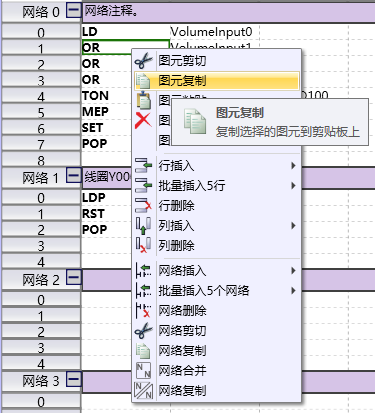
图1 cells operation
Click the left row button to insert or delete rows using the context menu.
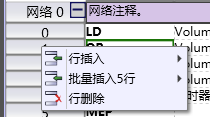
图2 line operation
Left click on the command parameter,will showtext edit,edit the parameter
Right click on the command parameter to define or select the symbol for the field using the context menu.
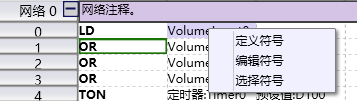
图3 parameter operation
You can also use the toolbar buttons, standard Windows control keys, and buttons in the clipboard area of the Edit menu ribbon to cut, copy, or paste selected content.
1.5. Delete program segment elements#
You can use the DELETE or ACKSPACE keys to delete each cell.
While holding down Shift, click on an element or press Shift and arrow keys simultaneously to select multiple elements, thereby expanding the selection.
Rows, columns, and networks can be deleted through the "Edit" menu or right-click to bring up a context menu.
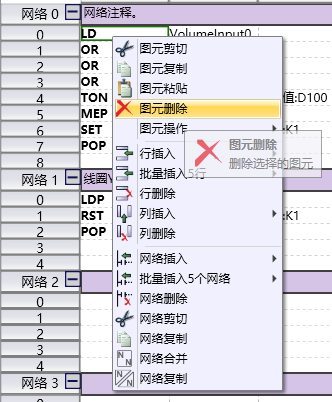
图4 Delet element
1.6. Close subroutine#
Click the close button "X" on the corresponding label on the main window program tab to close it:
อ่านเพิ่มเติม

