


1. Monitor
ในหน้านี้4 หัวข้อ
To read or modify data from the PLC, please enter Monitor mode.
*Click the "Monitor" button in the "Tool" menu ribbon,

图1 Monitor button
*Click the 'Monitor' button in the editor.! [W:16,H:16](./ MainPage~/Images~/Button1.png)
1.1. Read PLC data#
The data of the software components inside the program will be reflected differently in different forms of programs. The conduction of a soft component in the ladder diagram program will be filled with color in the center of the main component.

图2 Color fill
The word software component displays data values within the ladder diagram. Note that if the data value is too long, the software component name may be abbreviated or hidden. Move the mouse here to display detailed information.
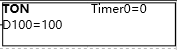
图3 Value display
Display numerical values uniformly in the instruction table program.

图4 value display
Unified display of numerical values in the functional block diagram program.
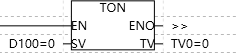
图5 value display
Monitoring values can also be set in the monitoring list. Regarding the monitoring listPlease check here。
1.2. Change PLC data#
Click on the numerical area, and the software component will display an ON/OFF switch button.

图6 value modify
The character software component will input numerical values, and changes can only be effective after pressing the enter key.
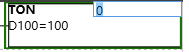
图7 value modify
You can also set change values in the monitoring list.
1.3. Exit monitoring status#
In monitoring mode, clicking the monitoring button will exit monitoring mode and return to editing mode.
1.4. Continuous data collection and plotting#
To continuously collect data and draw charts, click on "Diagram" from the drop-down menu in the "Window" area of the "View" menu. For the use of the sequence diagram function, please refer to here请详见这里。
อ่านเพิ่มเติม

