


ASCII Display
ASCII Display is used to displaying ASCII in device.
Click the ASCII display button icon ,
then a dialog box pops up as shown in Figure 4-99:
,
then a dialog box pops up as shown in Figure 4-99:
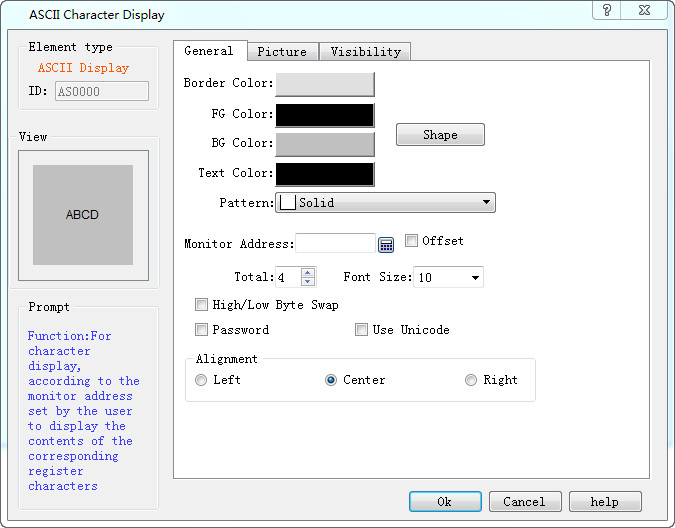
Figure 4-99 ASCII Display dialog box
In this dialog box, you can set the monitor address of the connected device to be displayed, choose the font size of the display text and other properties.
l Monitor Address: The data stored in this address can be displayed on real-time basis, or data can be input to this address.
l Total: The maximum number of characters that can be displayed.
l Font Size: The font size of the character to be displayed
l Exchange high and low bytes of input: The high byte in the value input by user will be exchanged with the low byte, and then the data after such exchange will be stored into the monitored word address.
l Password: When this is selected, the control does not show specific characters but displays an asterisk (*)
l Use UNICODE: The monitor address value is displayed in Unicode encoding
Alignment:
l Left: The character displayed is in the left part of the display area.
l Center: The character displayed is at the center of the display area.
l Right: The character displayed is in the right part of the display area.

Note: Refer to Bit Button control for Shape, Border color, Foreground color, Background color and Pattern.
Note: If set the transparence property of this control, the setting of background color is invalid.
Note: Refer to the use of "Bit button" control for the Visibility.
อ่านเพิ่มเติม

