


Remote configuration
This chapter introduces the basic sequence of the SKTOOL software middle distance configuration
1.Creation project
Currently, the sk series has the following touch screens to support remote functions, and when new configuration is built, the touchscreen selects one of the following models:SK-070GG, SK-070GW, SK-070MG, SK-070MW, SK-102CG, SK-102CW
withSK-070GWFor example,The new project is shown in the following figure:
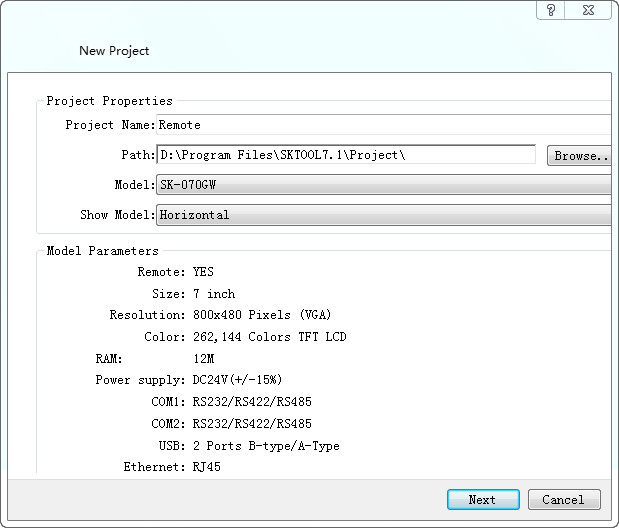
Select touch screen type
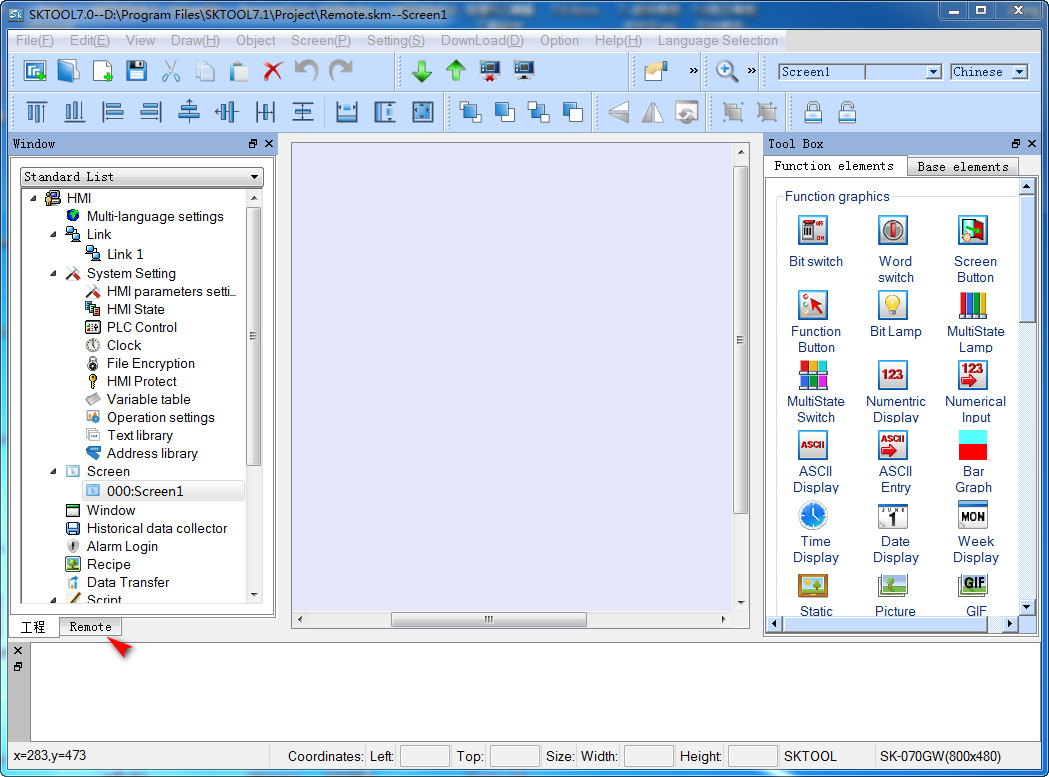
Engineering face
If the selected touch screen type supports the remote function, the configuration creation is completed, and there is a remote option in the engineering management device, which is used for remote image creation.
2.Remote setting
Jump to the remote interface as shown below
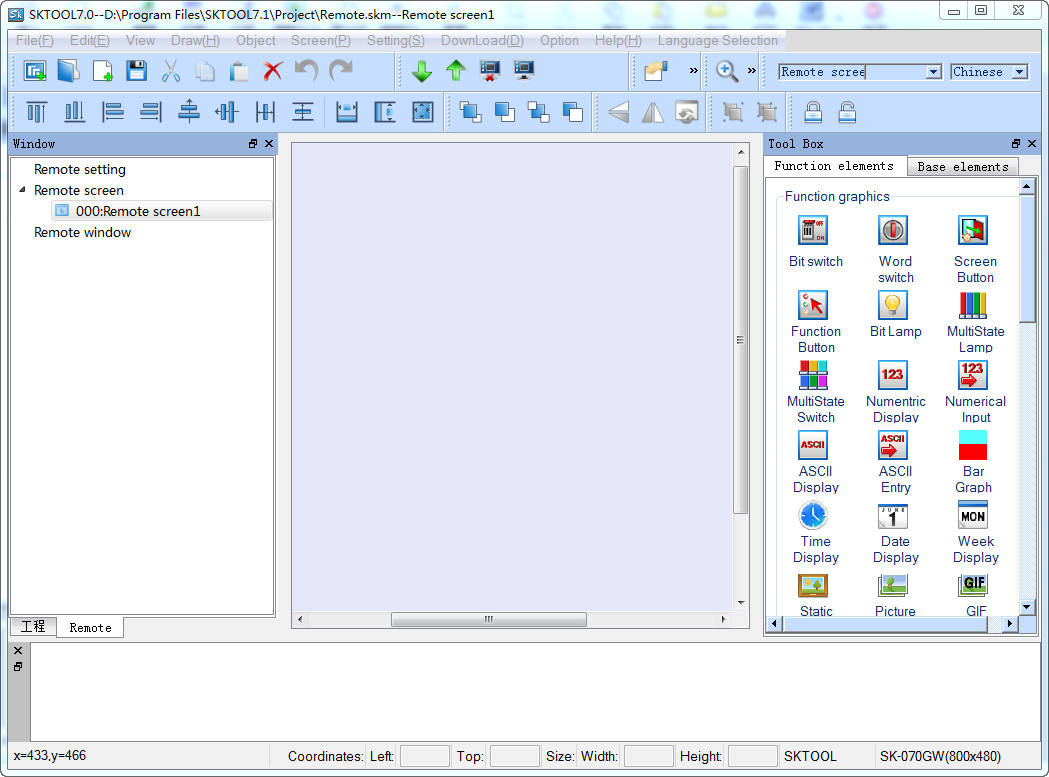
For remote engineering managers, users can refer to"Engineering manager"
Click remote Settings, set the remote device name and the connection password, and if not set the connection password, the download is prompted as follows
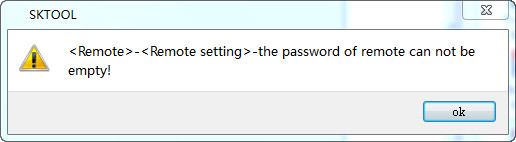
After the setup is complete, the user can add remote or remote Windows for remote monitoring
3.Configuration setting
The remote configuration image is the same as the touch screen configuration image creation process, and the remote configuration needs to be noted:
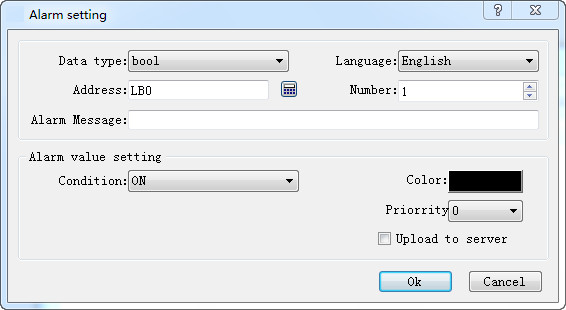
Remote alarm:The remote alarm currently only supports the discrete alarm, and the upload server is checked, and the data will be sent to the remote
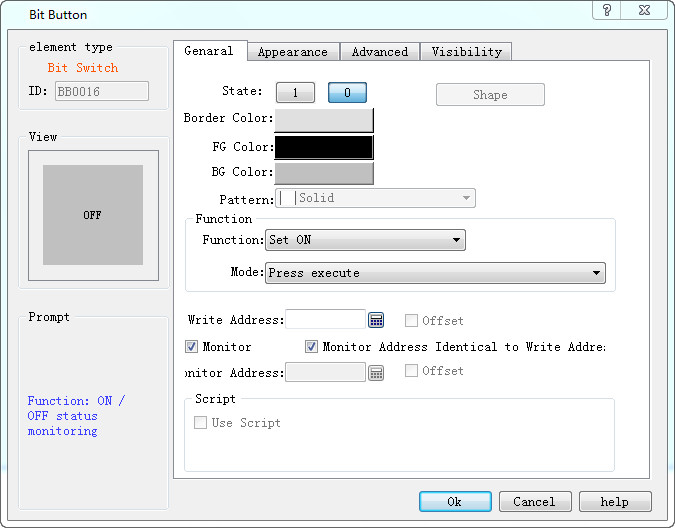
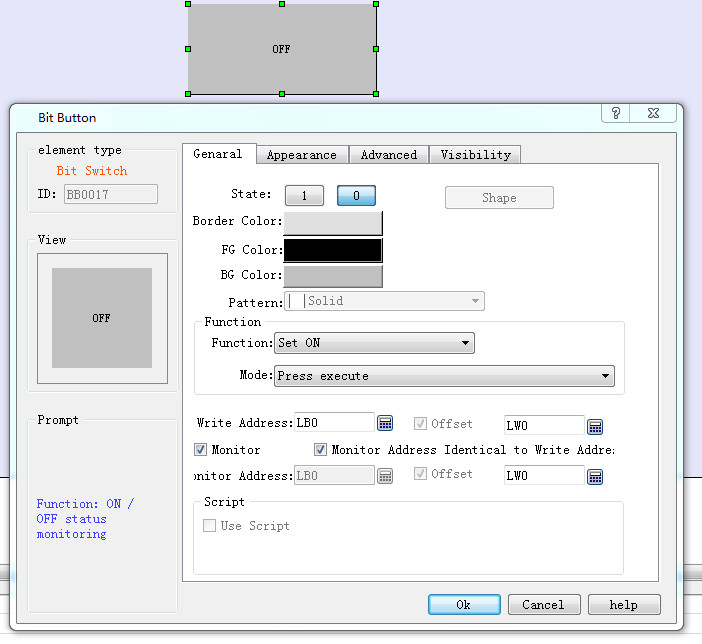
Control attribute:The remote configuration control attribute has a subtle difference to the touch screen group attribute, which can be seen in the shape, style, and address migration, and the macro instruction is the grey non-selected state. The relevant properties are not set in the remote configuration. The other controls are the same. The grey state properties are not set
 |
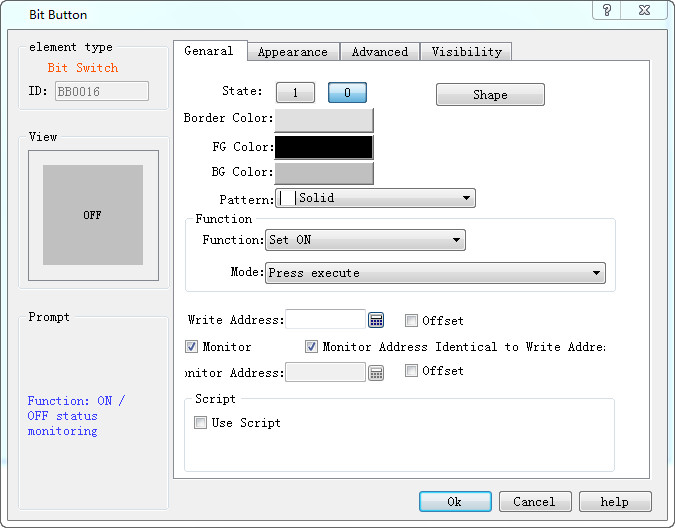 |
| Remote bit control properties | Touch screen control properties |
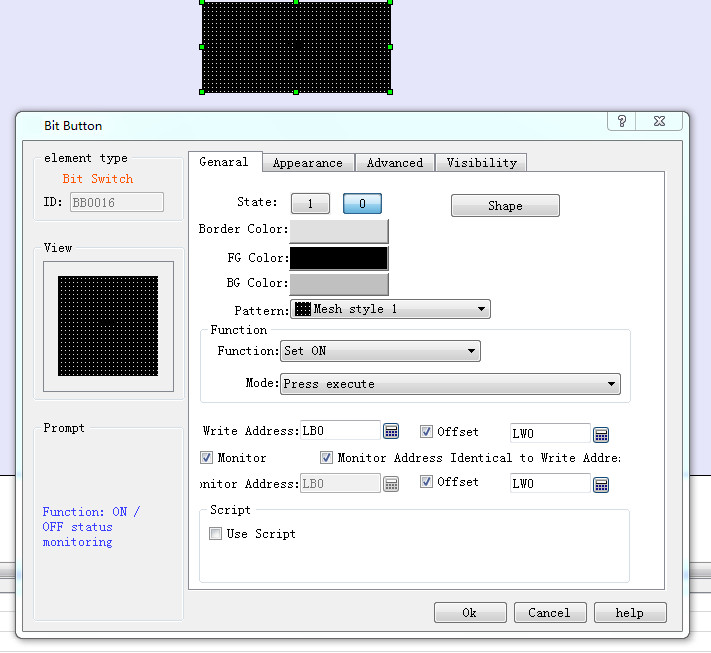
Control replication:It is important to note that the touchscreen configuration control is copied to the remote configuration control. The remote configuration USES the default property. The resulting control is copied to the remote configuration after the display effect is inconsistent with the original. For the remote configuration control is copied to the touch screen group state, the relevant properties are restricted, and the properties are free in the touch screen group, and the replication effect is shown in the figure below:
 |
 |
| Prereplication | After replication |
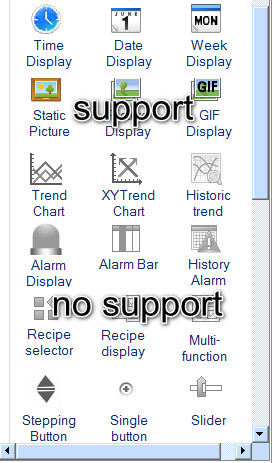
Control support:The remote configuration control is not fully supported by the touchscreen configuration control, and the unsupported control is in a grey non-selected state, as shown below:
4.Configuration download
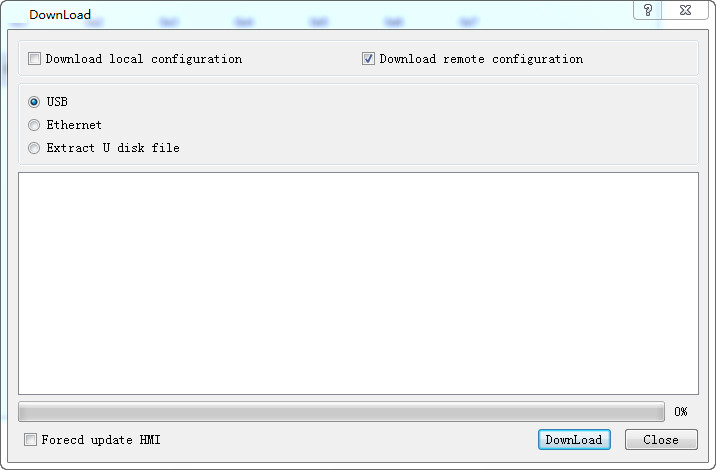
The same is the same as the download touchscreen configuration, but this is the option to download the remote configuration, the configuration download is complete, the touchscreen end is completed, and the user can connect the touch screen through the remote software.
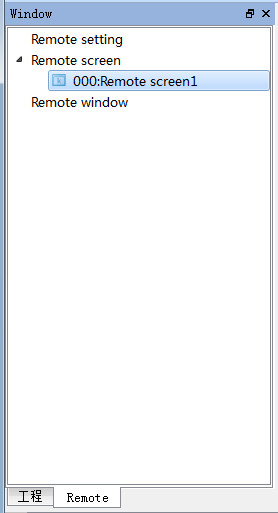
1.Remote setting
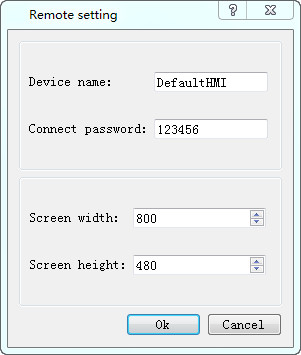
Remote Settings options:
Device name: user touch screen name when connecting to a remote connection
Connection password: must, remote client software enter the remote configuration time password option
The width of the image and the height of the image: the same as the sk image properties, set the configuration of the configuration area
2.Remote image
Add remote image
3.Remote window
Add remote window
อ่านเพิ่มเติม

