


1. Simulation breakpoint
A breakpoint system allows programs to pause (enter a paused state) where necessary, facilitating analysis and debugging.
1.1. 1. Add a breakpoint#
Users can manually add breakpoints in the breakpoint menu bar or ladder diagram. Taking ladder diagram breakpoints as an example, they can right-click on the location where they want to add breakpoints to pop up a right-click menu, and click the "Add breakpoint" button to complete the operation.
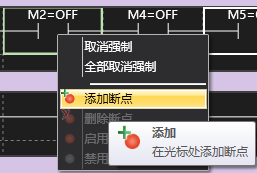
图1 Add a breakpoint
After adding a breakpoint, there will be a red rectangular element surrounding the corresponding component of the ladder diagram, indicating the existence of a breakpoint here.
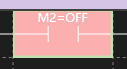
图2 Break Point Generation
When the program runs to this position, it will automatically stay here and enter the PAUSE state.
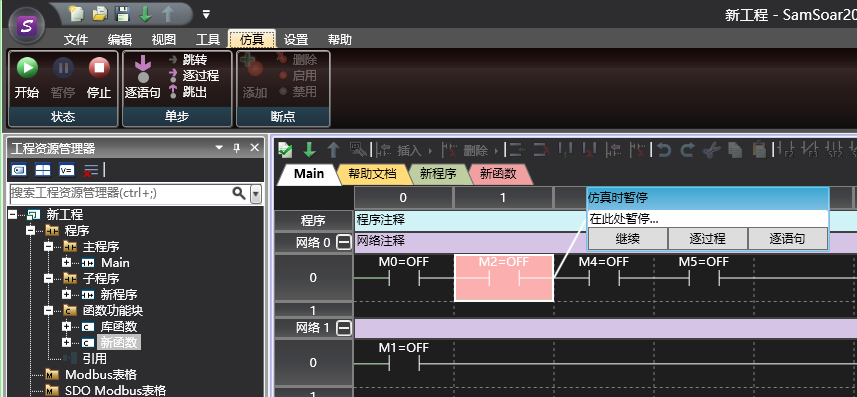
图3 Break point operation
1.2. 2. Break point setting#
After adding a breakpoint, clicking "jump" will cause the program to run to the breakpoint and pause. Clicking "enable"/"disable" will switch the breakpoint between enabled and disabled states. Clicking "delete" will immediately delete the breakpoint.
อ่านเพิ่มเติม

