


1. How to edit elements of SFC program
ในหน้านี้3 หัวข้อ
1.1. Cut, copy, paste, and delete#
Left click on a cell within the network to select it.
While holding down Shift, click on an element or press Shift and arrow keys simultaneously to select multiple elements.
Cut, copy, paste, or delete selected content. Right click on the toolbar buttons in the "clipboard" area of the "Edit" menu ribbon to display the context menu of editing options, or use keyboard shortcuts to cut (CTRL+X), copy (CTRL+C), or paste (CTRL+V).
1.2. Edit cells, instructions#
When you click on an empty cell in the program editor, a box will appear displaying the cells you have selected. You can use the context menu to paste the selected content into an empty cell or insert a new row or column at that location.
When clicking on a command, a box will appear around the command indicating the command you have selected. You can use the context menu to cut, copy, or paste commands, as well as insert or delete (as appropriate) rows, columns, or networks at that location.
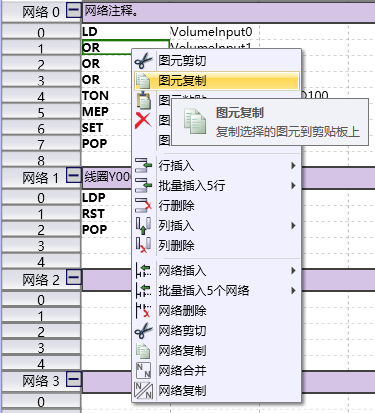
图1 Cells operation
Left click on the status number to edit the identification number.
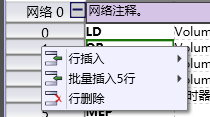
图2 edit status number
You can also use the toolbar buttons, standard Windows control keys, and buttons in the clipboard area of the Edit menu ribbon to cut, copy, or paste selected content.
1.3. Delete program segment elements#
You can use the DELETE or ACKSPACE keys to delete each cell.
While holding down Shift, click on an element or press Shift and arrow keys simultaneously to select multiple elements, thereby expanding the selection.
You can delete cells, rows, or columns by using the "Edit" menu or right clicking to bring up a context menu.
Please note that the initial state step cannot be deleted.
อ่านเพิ่มเติม

