


1. How to create a project
ในหน้านี้5 หัวข้อ
You can use one of the following methods to create a new project:
Click the "New" button in the "Operations" section of the "File" menu ribbon.
In the Quick Access toolbar, click the "New" button.
Press the Ctrl+N shortcut key combination.
Our software prompts you to save the current project before creating and opening new items.
Please note that the "Program Type" option in the "New Project" dialog box should be selected as "Step Ladder Program" to open the Step Ladder Editor for editing after generating the project.
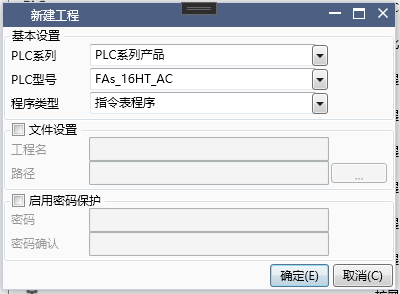
图1 new project dialogue
1.1. open the current project#
You can use one of the following methods to open an existing project:
Click the "Open" button in the "Operations" area of the "File" menu ribbon, and then navigate to the existing project you want to open.
Click the dropdown arrow of the "Previous" button in the "Operations" area of the "File" menu ribbon, and then select the most recently opened item.
Navigate to the corresponding directory in the Windows Explorer and double-click on the existing project. The software project is a file with a. ssr file extension.
Press the Ctrl+O shortcut key combination.
1.2. Preparation steps#
Once you create or open a project, you can start writing the program. Before starting, you may need to perform one or more of the following tasks:
1.2.1. Set PLC parameters#
through project setting,Some parameters may have an impact on subsequent programming.
1.2.2. Set appearance#
Through Upper software setting,You can adjust the appropriate color, font, and shortcut keys.
1.2.3. set communication parameter(PC)#
Throughcommunication setting,Set the communication parameters for connecting the PC to the PLC
อ่านเพิ่มเติม

