


Multi-function Button
Multi-function button allows realizing the
function of multi-step custom operation through one single control. It can
simplify user operation. Click on
the toolbar or double-click the existing multi-function button to enter the property
page.
on
the toolbar or double-click the existing multi-function button to enter the property
page.
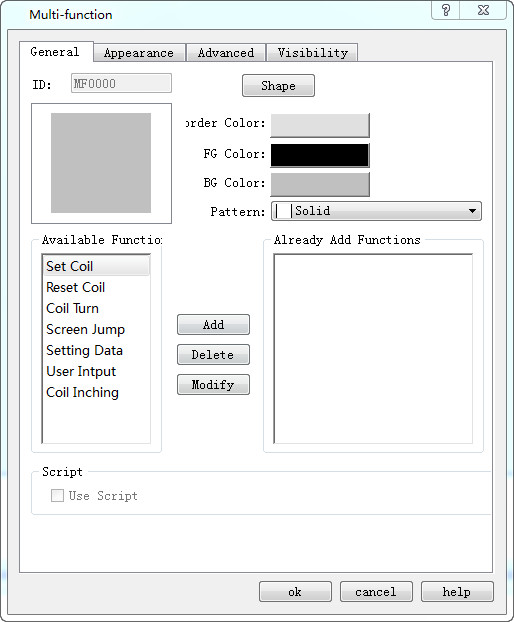
Ø General:
1. Button Appearance: shape, color, style, and other settings.
2. Available functions
Several functions are listed for user to select.
l Set Coil: Set the input address.
l Reset Coil: Reset the input address.
l Coil Alternation: Invert the input address value; if the address value is 0, then it becomes 1; if 1, it becomes 0;
l Coil Jog: When touched, the input address will be set; reset after releasing;
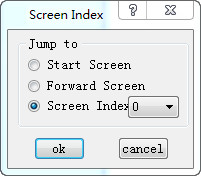
l Screen Jump: Jump to the selected screen. Modify it to choose the screen to jump to.
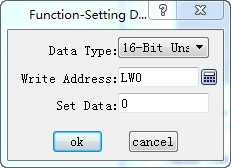
l Set data: Write the set value to the set address. You can select the type of data to be written, as well as the address and the data.
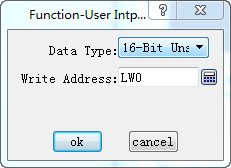
l User input: Enter a value and write it to the set address. You can select the data type to be written and set the address to be written. When this command is executed, it will appear the data input interface where you can perform the above operation.
Select an available function and click Add to add the function to the list of selected features.
When "User Input" and "Coil Jog" are selected, only the User Input will be executed while the coil jog will not.
3. Added functions
When you select an available function, the function is listed here. Double click it or click "Modify" to set or modify. Click "Delete" to delete this function.
Clicking the multifunction button while the configuration is running means performing all of the selected functions.
4. Macro
Select "Execute Macro" to see the list of macros. Choose a macro, and click the multi-function button to execute it when the project runs.

Label, Advanced and Visibility settings: Refer to those of the Bit Button.
Refer to “Bit Switch” for hot keys of Advanced.
อ่านเพิ่มเติม

