


Flow block
A Flow block is an
animated graphic that simulates the liquid flow within a pipe. Whether to flow
is determined by the state of the trigger address. When the trigger address is
1, the Flow block is in flow state; while when it is 0, the Flow block is in
static state. User determines the flow speed. Click the button on the
toolbar, and then it appears a pop-up dialog box, as shown below:
on the
toolbar, and then it appears a pop-up dialog box, as shown below:
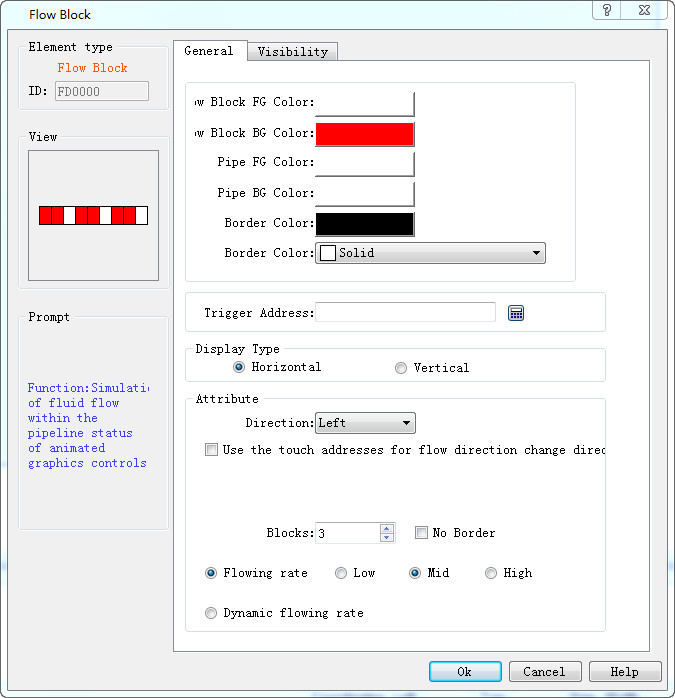
Color: Set the color properties of the Flow block.
l Flow block foreground color: Click on the color button to set the Flow block foreground color;
l Flow block background color: Click on the color button to set the Flow block background color;
l Pipe foreground color: Click on the color button to set its foreground color;
l Pipe background color: Click on the color button to set the pipe background color;
l Border color: Click on the button to set the border color of the Flow block control;
l Pattern: Click to select the pattern of the Flow block control; the default setting is “Solid”.
l Trigger Address: Address that controls the stationary or moving of the Flow block; when the value of the address is 1, then the block flows.
l Attribute: Set the properties of the Flow block, such as direction, flow speed.
l Display Mode: Select "Horizontal" to make the Flow block move horizontally; and select "Vertical” to make it flow vertically.
l Direction: When the display mode is “Horizontal”, you can choose "Left" or "Right"; in another case, "Up" or "Down".
l Change the flow direction to the opposite direction through the trigger address: when the "Trigger address" value is equal to that of the "Effective status" set by user, the Flow direction is switched to the opposite.
For example, If "Flow direction" is "Left”, this option is selected, "Trigger address" is LB2, and "Effective Status" is set to 1, then when the value of LB2 is 1, the direction of the Flow block is switched to "Right", while when the value of LB2 is 0, the direction is changed back to the original "Left".
l Blocks: The number of Flow units, ranging from 1 to 30;
l No Border: When this attribute is selected, the edges of the Flow block are hidden.
l Flow rate: Either fixed rate or dynamic rate
l Fixed Flow rate: High, Middle or Low.
l Dynamic Flow rate: The Flow rate is determined by the value of a word address, which should be between 1 and 10. When the value is 0, the Flow block does not flow; When the value is 1, the Flow block flows at the lowest rate; When the value is 10, the Flow block flows at the highest rate.

The "Visibility" page can refer to that of "Bit Button" control.
อ่านเพิ่มเติม

