


Standard Toolbar
SKTOOL offers a series of shortcut tool buttons, some of which are tool command buttons while some belong to editing commands. You can easily get to the needed commands here instead of seeking it in the menu bar if familiar with these buttons. Each button has tooltips that will appear when the mouse is placed on the button. SKTOOL provides a total of 35 tool buttons, which will turn gray if the If the operation is invalid in the current environment.

Figure 2-40 Standard Toolbar
Each command in the toolbar correspond to that in the menu, and their functions are respectively:
 New
Project: shortcut key Ctrl + N; to create a blank project.
New
Project: shortcut key Ctrl + N; to create a blank project.
 Open Project: shortcut key Ctrl + O;
execute this command to open a project file created, saved before and suffixed
by .skm.
Open Project: shortcut key Ctrl + O;
execute this command to open a project file created, saved before and suffixed
by .skm.
 New Screen: Execute this command to
create a new screen in the current project.
New Screen: Execute this command to
create a new screen in the current project.
 Save: shortcut key Ctrl + S, used to save the current screen configuration that has been
changed, with the file name and directory being the same as the original.
Save: shortcut key Ctrl + S, used to save the current screen configuration that has been
changed, with the file name and directory being the same as the original.
 Undo: shortcut key Ctrl + Z; to cancel
the last operation command and your recent action.
Undo: shortcut key Ctrl + Z; to cancel
the last operation command and your recent action.
 Redo: shortcut key Ctrl + Y, to restore
the last operation command and your recent action.
Redo: shortcut key Ctrl + Y, to restore
the last operation command and your recent action.
 Cut: shortcut key Ctrl + X, to delete
your selected graphical objects and copy them into the clipboard buffer.
Cut: shortcut key Ctrl + X, to delete
your selected graphical objects and copy them into the clipboard buffer.
 Copy: shortcut key Ctrl + C; to copy the
selected graphic object into the paste buffer.
Copy: shortcut key Ctrl + C; to copy the
selected graphic object into the paste buffer.
 Paste: shortcut key Ctrl + V, to copy and
paste buffer graphics objects into the current screen.
Paste: shortcut key Ctrl + V, to copy and
paste buffer graphics objects into the current screen.
 Delete: Del, to remove selected graphical
object from the screen.
Delete: Del, to remove selected graphical
object from the screen.
 Group: Execute this command to combine
several graphic objects you select into one object.
Group: Execute this command to combine
several graphic objects you select into one object.
 Ungroup: This command can decompose a
combination of graphic objects you have selected into the original graphic
objects; it’s the inverse operation of Group.
Ungroup: This command can decompose a
combination of graphic objects you have selected into the original graphic
objects; it’s the inverse operation of Group.
 Flip Horizontal: Execute this command to
make a single graphic or multiple graphics pivot horizontally.
Flip Horizontal: Execute this command to
make a single graphic or multiple graphics pivot horizontally.
 Flip Vertical: Execute this command to
make a single graphic or multiple graphics pivot vertically.
Flip Vertical: Execute this command to
make a single graphic or multiple graphics pivot vertically.
 Grid: Execute this command to create or
cancel a grid with certain width on the current screen.
Grid: Execute this command to create or
cancel a grid with certain width on the current screen.
 Zoom in: Execute this command to magnify
the current screen two times; to continue to enlarge, please continue to
execute the command.
Zoom in: Execute this command to magnify
the current screen two times; to continue to enlarge, please continue to
execute the command.
 Zoom fit: Execute this command to restore
the current screen to the standard size.
Zoom fit: Execute this command to restore
the current screen to the standard size.
 Zoom out: Execute this command to shrink
the current screen half the size; to continue zooming out, proceed to execute
the command.
Zoom out: Execute this command to shrink
the current screen half the size; to continue zooming out, proceed to execute
the command.
 Language: Execute this command to select
the language you want.
Language: Execute this command to select
the language you want.
 Status drop-down box: If select a control
with status, the drop-down box will show the number of control status; if the
number in the box changes, the status of the selected control will switch into
corresponding status.
Status drop-down box: If select a control
with status, the drop-down box will show the number of control status; if the
number in the box changes, the status of the selected control will switch into
corresponding status.
 Screen
frames: Execute this command to jump to the page you want to view.
Screen
frames: Execute this command to jump to the page you want to view.
 Property settings: Execute this command
to get the properties of the selected key.
Property settings: Execute this command
to get the properties of the selected key.
 Locked: Execute the command to lock the
key selected on the screen and it can not be moved after locking.
Locked: Execute the command to lock the
key selected on the screen and it can not be moved after locking.
 Unlock: Execute this command to remove
the locking of screen buttons.
Unlock: Execute this command to remove
the locking of screen buttons.
 Find/replace the button:click the button, and the user can find all
the usage of the specific register and can be replaced by the other
Find/replace the button:click the button, and the user can find all
the usage of the specific register and can be replaced by the other
 Address Find: Execute this command to
find out whether an address is occupied and the search results are displayed in
the "information output window".
Address Find: Execute this command to
find out whether an address is occupied and the search results are displayed in
the "information output window".
 Address display: Execute this command to
browse the used address of all controls in certain screens or all the screens.
Address display: Execute this command to
browse the used address of all controls in certain screens or all the screens.
 Find macro: Execute this command to find
whether a macro is used; the search result is displayed in the
"information output window".
Find macro: Execute this command to find
whether a macro is used; the search result is displayed in the
"information output window".
 Macro Manager: Execute this command to
see the macro condition of all controls in certain screens or all the screens.
Macro Manager: Execute this command to
see the macro condition of all controls in certain screens or all the screens.
 Click the button to modify the selected control, screen, and text in
the window.
Click the button to modify the selected control, screen, and text in
the window.
 Rotate the command, select the control, and use it to rotate freely
in the center of the control.
Rotate the command, select the control, and use it to rotate freely
in the center of the control.
 Use this command to open the tool buttons
that are not displayed; when the mouse moves away, the popup disappear.
Use this command to open the tool buttons
that are not displayed; when the mouse moves away, the popup disappear.
 Off-line simulation: Execute this command
to run directly off-line simulation command.
Off-line simulation: Execute this command
to run directly off-line simulation command.
 Online simulation: Execute this command
to run directly online simulation command.
Online simulation: Execute this command
to run directly online simulation command.
 Compile: Execute this command to check
user’s own configuration engineering and get ready to download.
Compile: Execute this command to check
user’s own configuration engineering and get ready to download.
 Download: Execute this command to pop up
the download dialog; after connecting the SK HMI to PC, you can download the
configuration project to the touch screen.
Download: Execute this command to pop up
the download dialog; after connecting the SK HMI to PC, you can download the
configuration project to the touch screen.
 Upload: Execute this command to upload
historical data, configuration, formulas and alarm history from a running HMI
to a PC via the equipped USB cable.
Upload: Execute this command to upload
historical data, configuration, formulas and alarm history from a running HMI
to a PC via the equipped USB cable.
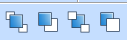
Layer: Level drop-down box, includes four operating controls: Bring to top, Send to bottom, Bring forward and Send backward
Ø Bring To Top (F): Execute this command to shift the graphic object you selected to the top of the screen.
Ø Send To Bottom: Execute this command to shift the graphic object you selected to the bottom of the screen.
Ø Bring Forward: Execute this command to shift the graphic object you selected forward one layer.
Ø Send Backward (B): Execute this command to shift the graphic object you selected backward one layer.
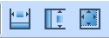
Size: Size drop-down box includes three operating controls: same width and height, same height, same width.
Ø Make same width: Use this command to make a group of selected patterning the same width as that marked by a black point.
Ø Make same height: Use this command to make a group of selected patterning the same height as that marked by a black point.
Ø Make same width and height: Use this command to make a group of selected patterning the same width and height as that marked by a black point.

Alignment: Alignment drop-down box includes a total of eight operating controls: left-aligned, right-aligned, Vertical Center, Horizontal Center, Top, Bottom, Horizontal Equal Interval and Vertical Equal Interval.
Ø Left: Shortcut key Ctrl + Left, execute this command to left justify the left edges of selected graphic objects.
Ø Right: Shortcut key Ctrl + Right, execute this command to right justify the right edges of selected graphic objects.
Ø Top: Shortcut key Ctrl + Up, execute this command to align upper boundaries of selected multiple graphic objects top.
Ø Bottom: Shortcut key Ctrl + Down, execute this command to align lower boundaries of selected graphic objects bottom.
Ø Horizontal Center: Execute this command to align selected graphics horizontal center.
Ø Vertical Center: Execute this command to align selected graphics vertical center.
Ø Horizontal Equal Interval: Execute this command to make two or more controls align horizontally equal interval.
Ø Vertical equal interval: Execute this command to make two or more controls align vertically equal interval.
 Screen control layout:
Adjust the font, font size, and font color of the entire configuration with one
click
Screen control layout:
Adjust the font, font size, and font color of the entire configuration with one
click
Set control font size, alignment, and text color
อ่านเพิ่มเติม

