


ควบคุม HMI Screen จาก Script
เปลี่ยน Screen ที่แสดงบนหน้าจอ HMI Samkoon ด้วย Script โดยตั้ง Screen jump ใน PLC Control ให้ผูกกับ Local Bit แล้วให้ Script เปลี่ยนค่า LB0 และ LB1 ตามค่าใน LW0
สั่งเปลี่ยน Screen จาก Script ได้ โดยตั้ง Screen jump ใน PLC Control ให้แต่ละ Screen เปิดเมื่อ Local Bit เป็น 1 แล้วให้ Script เป็นตัวเปลี่ยนค่า Local Bit นั้น
อัพเดทล่าสุด: 26 ตุลาคม 2569
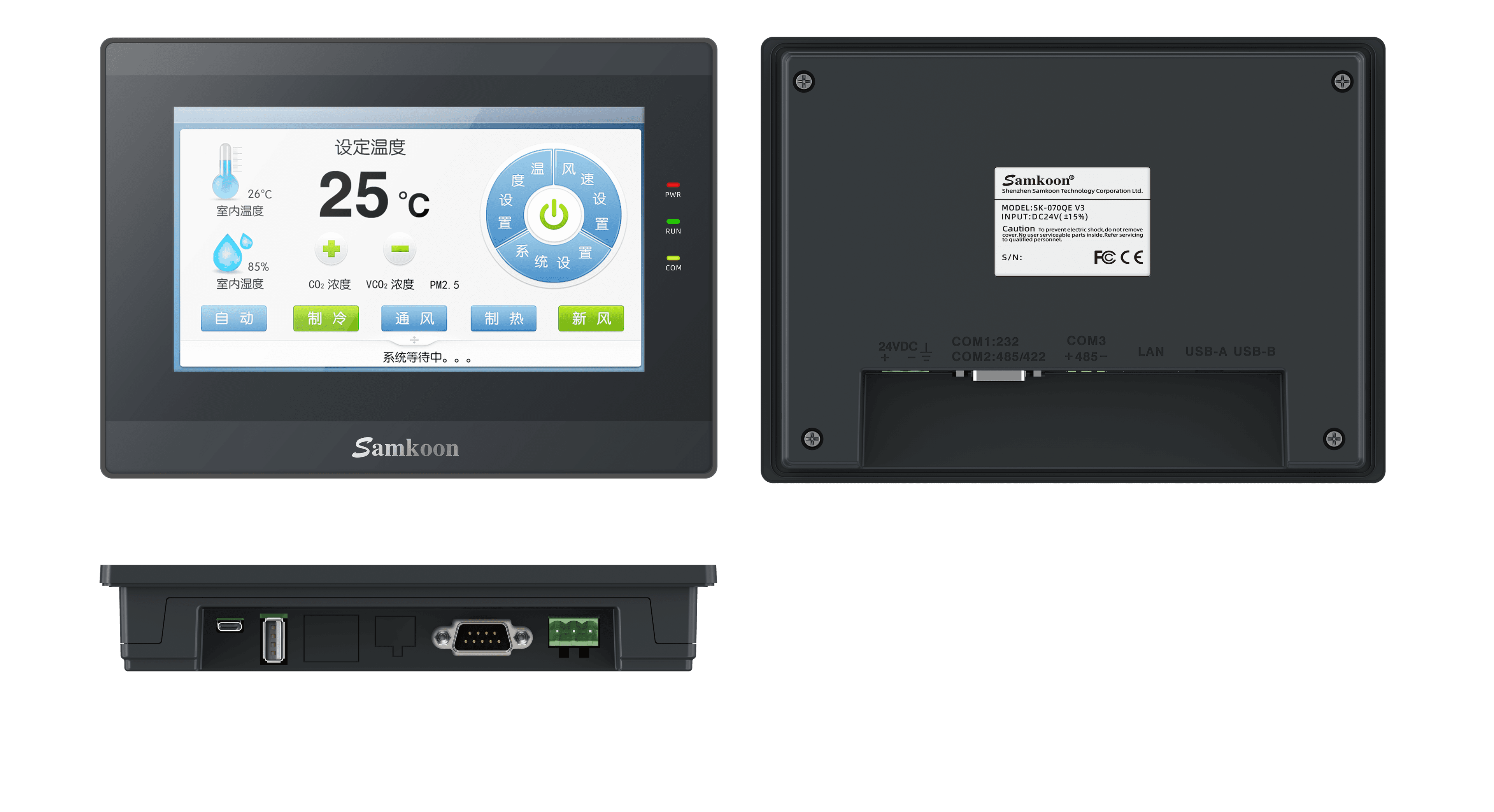
สั่งเปลี่ยน Screen จาก Script ได้ไหม
ได้ หน้าจอ Samkoon เปลี่ยน Screen ตามค่าของ Bit หรือ Word ที่กำหนดไว้ใน PLC Control อยู่แล้ว ดังนั้นไม่ว่า Script จะทำงานอะไร (อ่าน Barcode คำนวณค่า ฯลฯ) สุดท้ายแค่ให้ Script เปลี่ยนค่า Local Bit ที่ผูกกับ Screen ไว้ หน้าจอก็จะเปลี่ยนตาม
ขั้นตอนการตั้งค่า
1. ผูก Screen กับ Local Bit ใน PLC Control
- ในแผง Project ไปที่ System Setting แล้วดับเบิลคลิก PLC Control
- เลือกแท็บ Screen jump
- เลือกว่าจะเปลี่ยน Screen ด้วย Word (Screen jump through Word Addr) หรือด้วย Bit (Screen jump through Bit Addr) ในคลิปติ๊กแบบ Bit
- เพิ่มแถวในตาราง กำหนด Bit Address, Condition และ Screen ที่จะเปิด แล้วกด ok
| Condition | Bit Address | Screen Name |
|---|---|---|
| 1 | LB0 | Main |
| 1 | LB1 | Sub |
แปลว่าเมื่อ LB0 เป็น 1 ให้เปิด Screen ชื่อ Main และเมื่อ LB1 เป็น 1 ให้เปิด Screen ชื่อ Sub
2. เขียน Script เปลี่ยนค่า Local Bit
ตัวอย่างง่ายๆ ในคลิป ถ้าค่าใน LW0 เป็น 0 ให้ LB0 เป็น 1 และ LB1 เป็น 0 ถ้า LW0 เป็น 1 ให้สลับกัน
#include "MacroInit.h"
//#include "subFun1.c" //Example

void Macro_main(IN *p)
{
 MarcoInit
 //ToDo
   if (LocalWord[0] == 0)
   {
      LocalBit[0] = 1;
      LocalBit[1] = 0;
   }

   if (LocalWord[0] == 1)
   {
      LocalBit[0] = 0;
      LocalBit[1] = 1;
   }
}
LocalWord[0] คือ LW0 และ LocalBit[0], LocalBit[1] คือ LB0, LB1
ผลลัพธ์
ในคลิปมี Numeric Input ของ LW0 อยู่บน Screen Main (หน้าหลัก) เมื่อทดสอบใน Simulator แล้วใส่ค่า 1 หน้าจอเปลี่ยนไปที่ Screen Sub (หน้าอื่น) ทันที ส่วนค่า 0 ตาม Script จะสั่งให้เปิด Screen Main
สรุป
ตั้ง Screen jump ใน PLC Control ให้ผูก Screen กับ Local Bit (หรือ Word) แล้วให้ Script เปลี่ยนค่า Bit นั้น จะใช้ Bit หรือ Word ก็ได้ผลเหมือนกัน
บทถัดไป
ใช้ Barcode Scanner กับหน้าจอ HMI แบบรวบรัด
มีคำถาม? ติดต่อทีมงาน