


language
Language: This function realize multiple languages; it is necessary to preserve languages employed in configuration in character library of PC.
Double click the Language option or right click to open the dialog box of Language Setting.
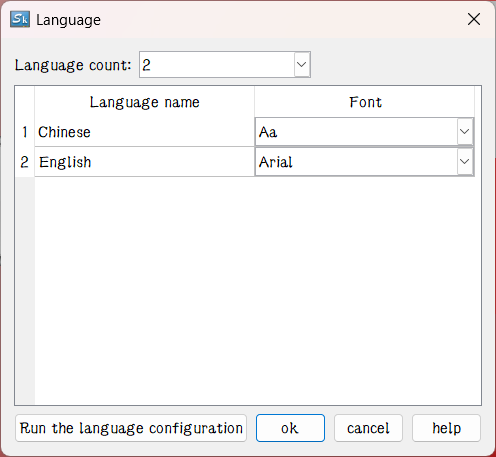
Language total: Set total number of the system language, at most fifty languages. Article 50 the biggest
Language Name: Set a name for each language.
Example:
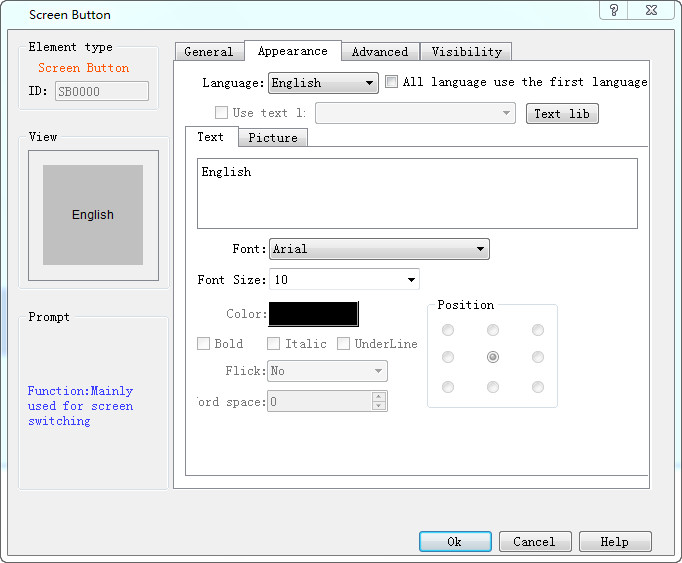
1. As shown above, set the total number of languages to 3, and the language name is by default; create a new text input control, such as Screen button, select Language 1 in the language drop-down box, enter in the text box “lang1”, and then set the parameters of font size and color, etc.; select Language 2 in the language drop-down box, then enter “lang2”; select Language 3 in the language drop-down box, then enter in the text box "lang3", as shown below:
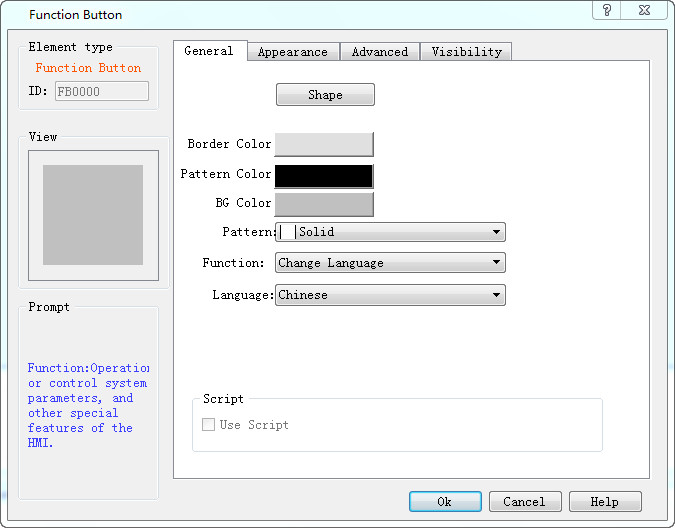
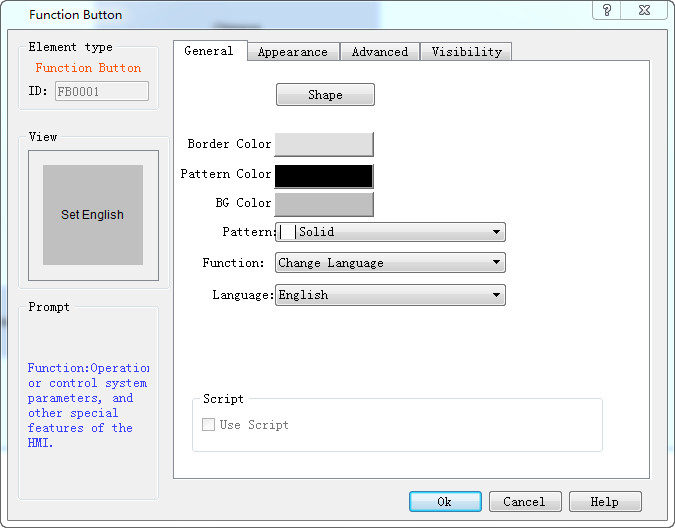
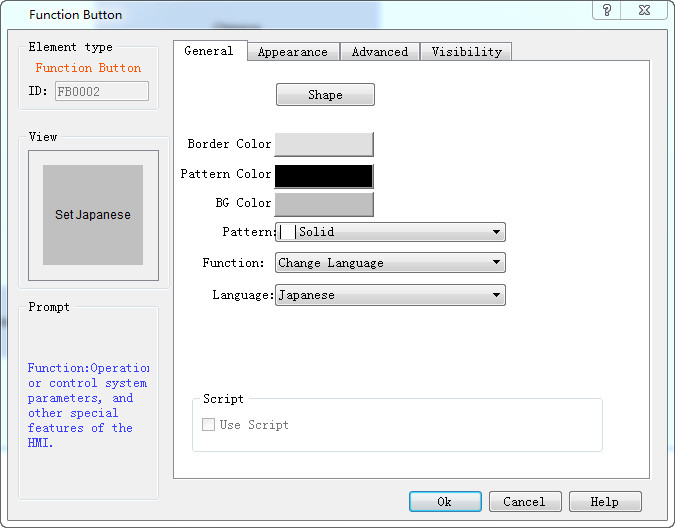
2. Click "OK" after the settings, and then left click on the screen to add this Screen control button when the mouse cursor shows a cross shape; adjust its size. It should note that "Function" options below “General” page of each button are the same: "Switch language"; while options of "Language" are different: Language1, Language2 and Language3, respectively.
3. Save the project after the settings, as shown below:
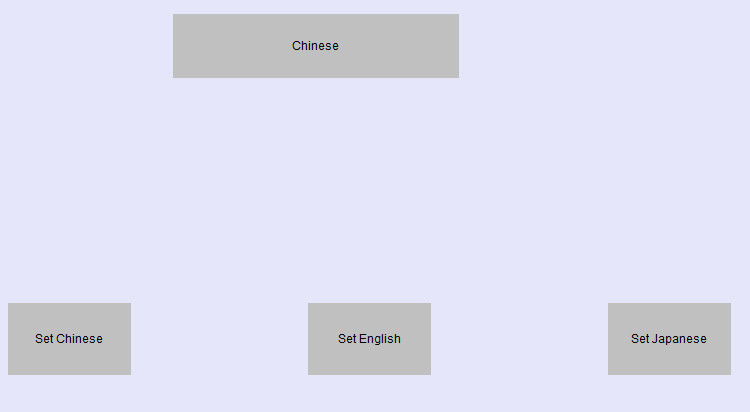
4. Simulate (or download to HMI)
All controls with text will be presented in the according language when click Function button 1, 2 or 3.
As shown below:
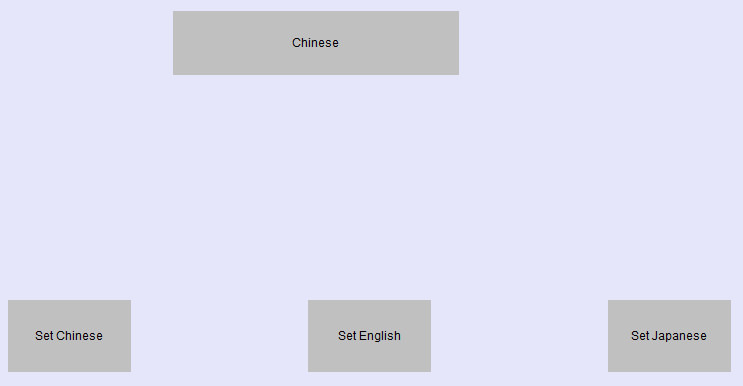
The figure above shows the state after clicking Function button 1 to switch the language to Set Chinese
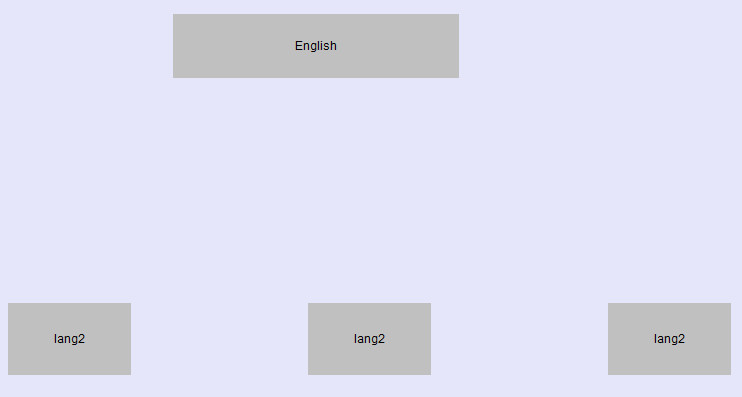
The figure above shows the state after clicking Function button 2 to switch the language to Set English.
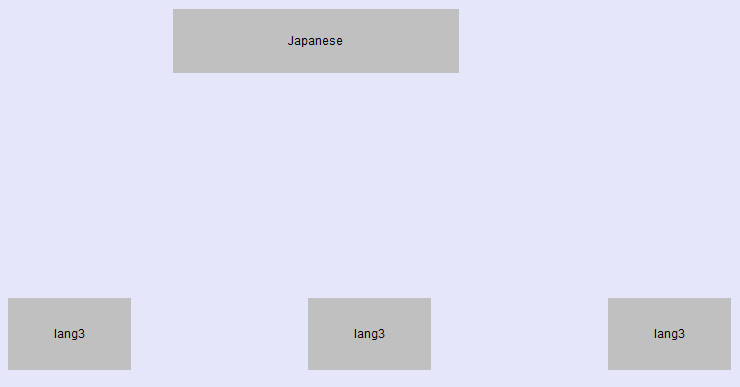
The figure above shows the state after clicking Function button 3 to switch the language to Set Japanese.
To achieve the multi-language function in the entire project, it is necessary to input different texts for each control or object with text (same operation with the first point). This enables the entire project to be switched to the specified language when execute the command of "Switch Language".
The following is an example of how to implement the runtime language configuration function:
After clicking the "Run Language Configuration" button, the following interface will be displayed:
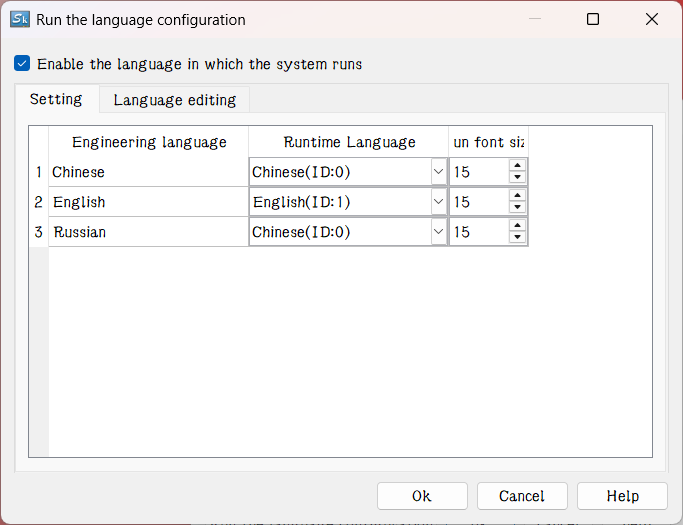
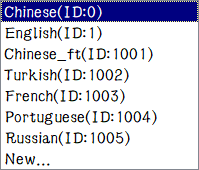
Check the "Enable system runtime language" button to display the configuration of the number of languages just set on the Multi-language settings page. Here you can select the project runtime language and runtime size for the corresponding language. SKTOOL has many built-in languages, the list is shown below:
You can view the running language details of the corresponding language on the language editing page. You can also double-click to change the language.This is shown in the following figure:
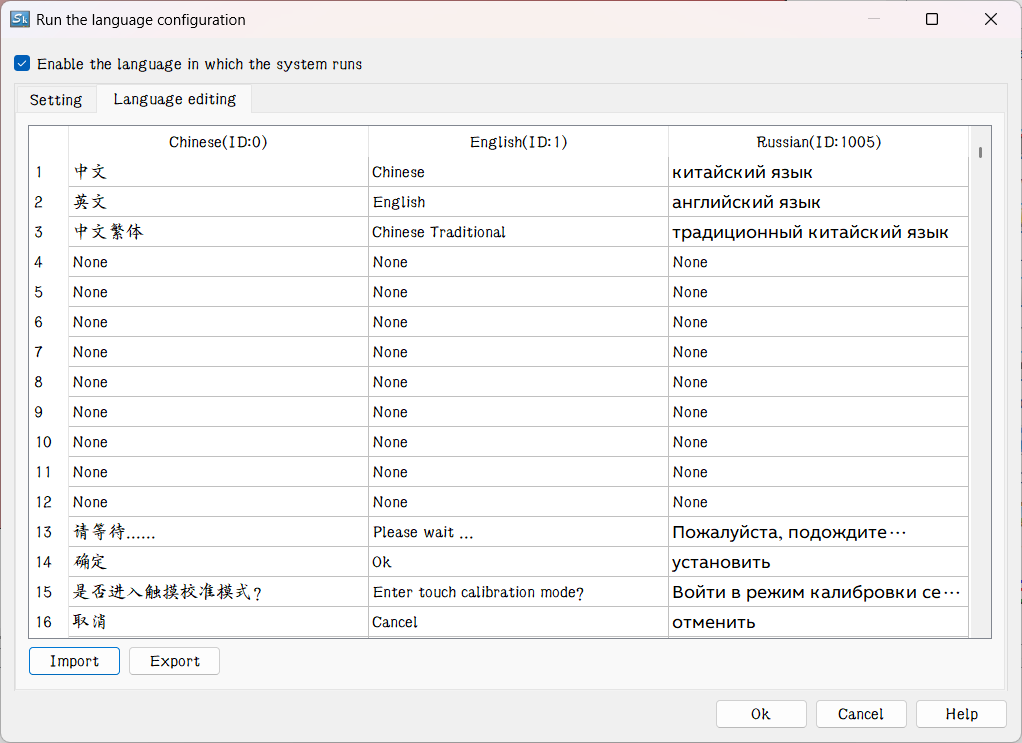
Meanwhile, the running language configuration page supports CSV format file import and export functions, which can be used to realize the rapid development of different languages. Translation and modification functions between different languages.
Similarly, the function runs in a user-defined language.You need to set the runtime language in the Configuration page Select "New" language, and set the name and font size for the new language, as shown in the following figure:
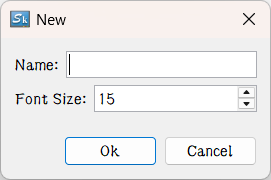
After adding a new language, the language edit box of the new language will appear on the "Language Edit" page, and you need to check the language edit box by yourself. Users need to edit the new language in the "Language Edit" page, as shown in the following figure:
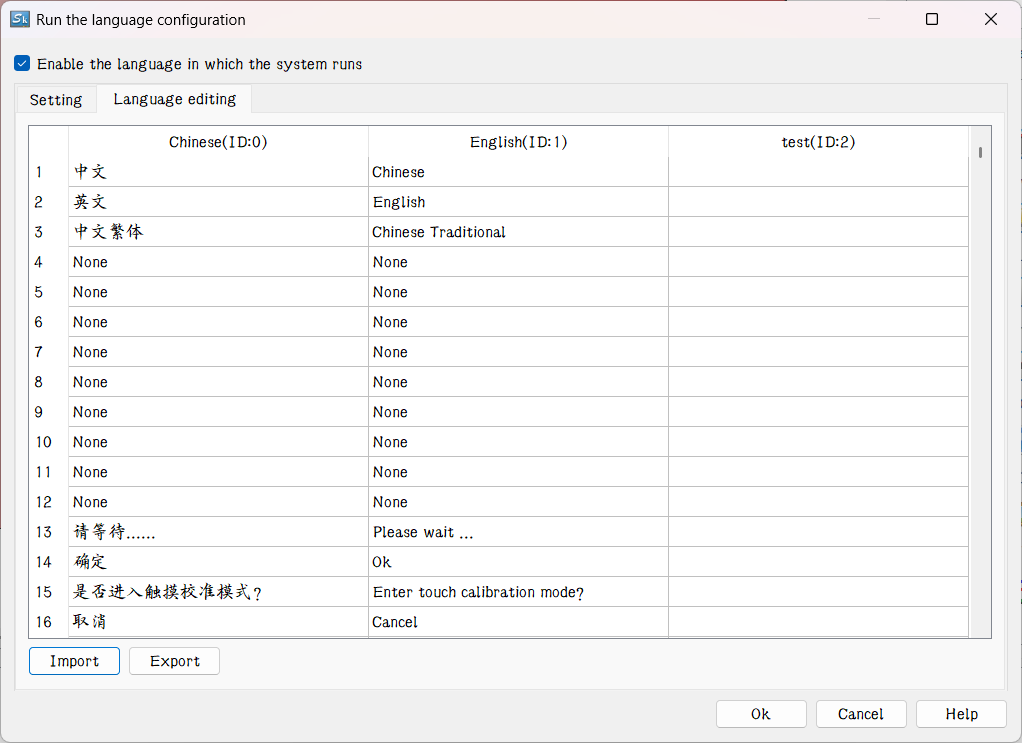
After editing the contents of the new language, you can set it as the system language in the corresponding engineering language operation state; then carry out the The new language can also be used when selecting a new runtime language.
อ่านเพิ่มเติม

