


userpermission
User permissions allow users to add custom users and user groups, thereby implementing permission control for operations in the configuration. In addition, User permissions are bound to the electronic signature function, and electronic signatures are implemented based on User permissions.
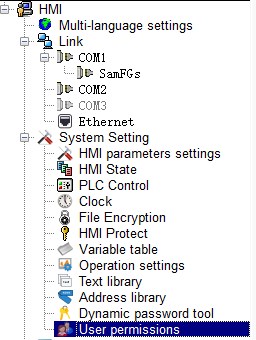
First, click "Project Manager" -> "User Permissions" to pop up the following pop-up window to set user and user group information.
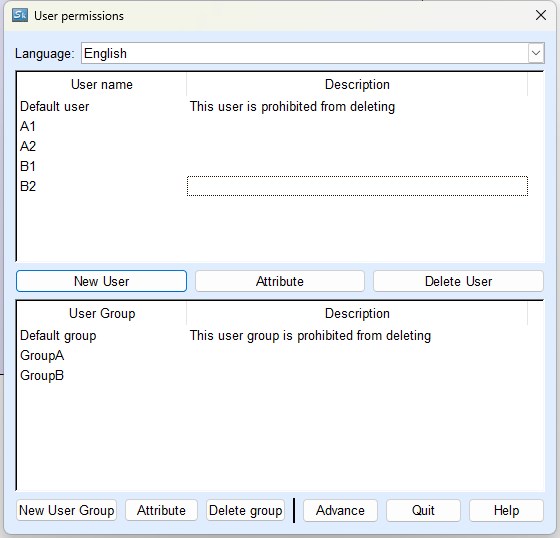
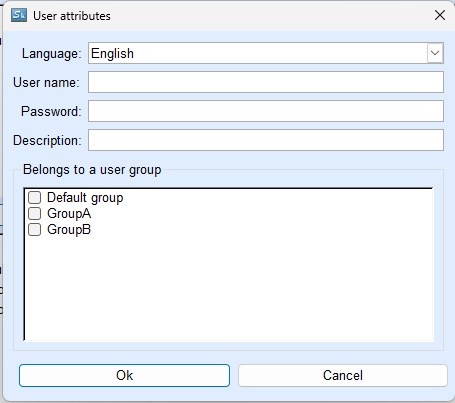
Adding new users and modifying their attributes
Click the "Add User" button on the "User Permissions" page to pop up the user properties window as shown below. To modify properties, first select the created user and then click the "Properties" button. Fill in the relevant information and the user group in the user properties pop-up window and click OK to complete.
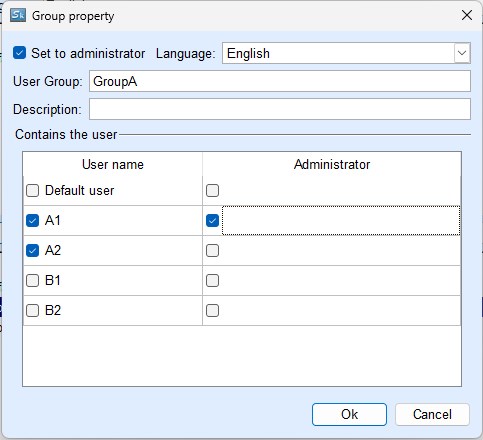
Adding new groups and modifying properties
Click the "Add Group" button on the "User Permissions" page to pop up the user properties window as shown below. To modify properties, first select the created group and then click the "Properties" button. In the group properties pop-up window, fill in the group name, whether to set up an administrator, set the users of this group, and click "OK" to complete.
Advanced User Permission Settings
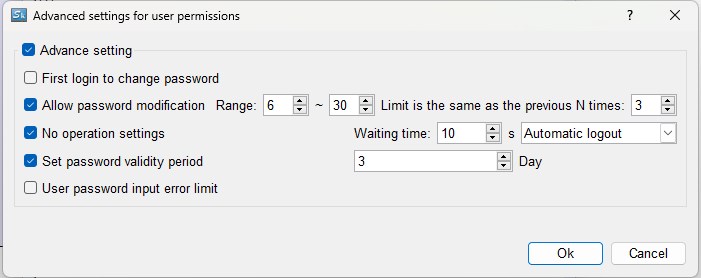
Click the "Advanced" button on the "User Permissions" page to pop up the advanced user permissions settings window as shown below. Just check the services you want to set.
Switch current user permissions and log out
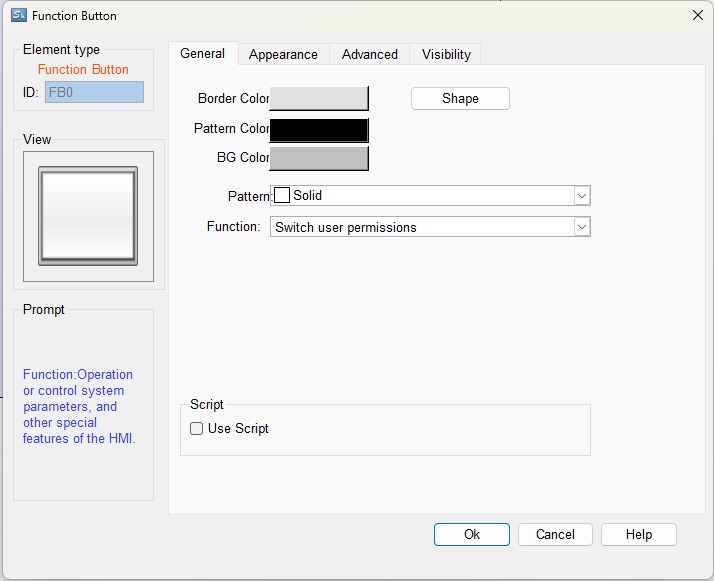
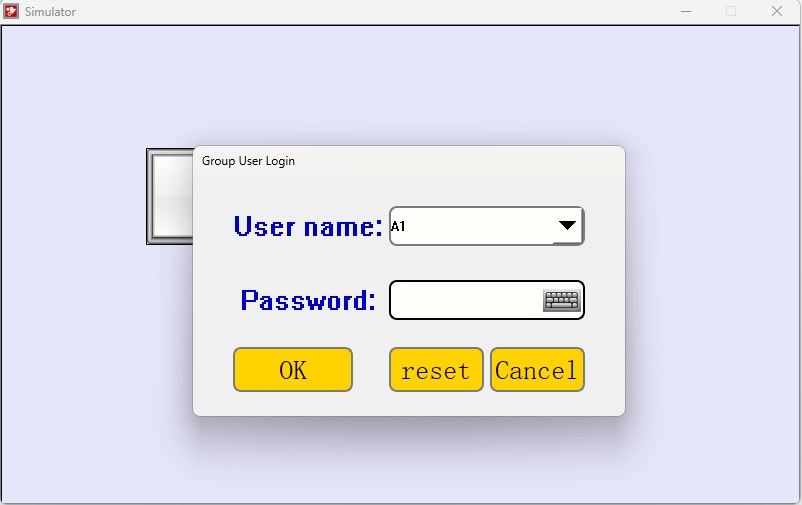
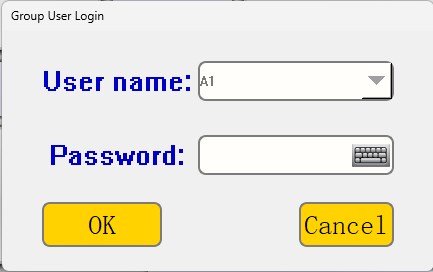
Select "Switch current user permissions" in the function button. Click the button on the touch screen to pop up the "Permission user login" pop-up window. Select the user and fill in the correct password to log in to the new user.
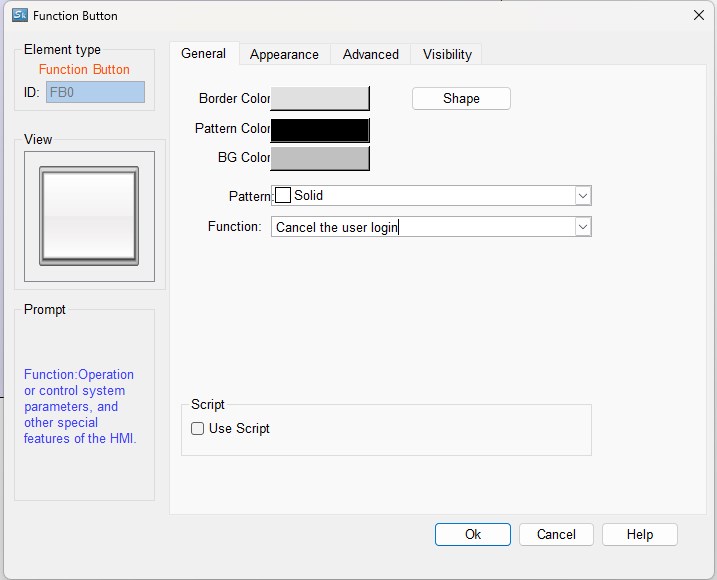
Select "Cancel user login" in the function button. Clicking this button on the touch screen will automatically log out the current user and the user will be in a no-user state.
Below is the simulator permission user login pop-up window.
User permissions management function
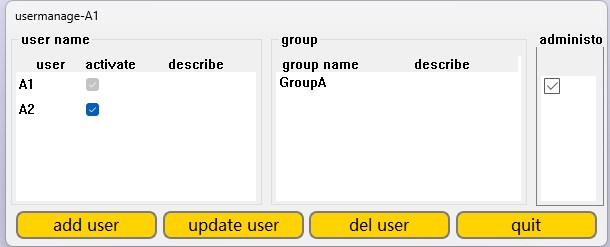
Select "User permissions Management" from the function buttons. Click the button on the touch screen to pop up the "User permissions Management" pop-up window. This function is only available when the current user is an administrator. The user information of the current group can be modified, including adding users, deleting users, and modifying users.
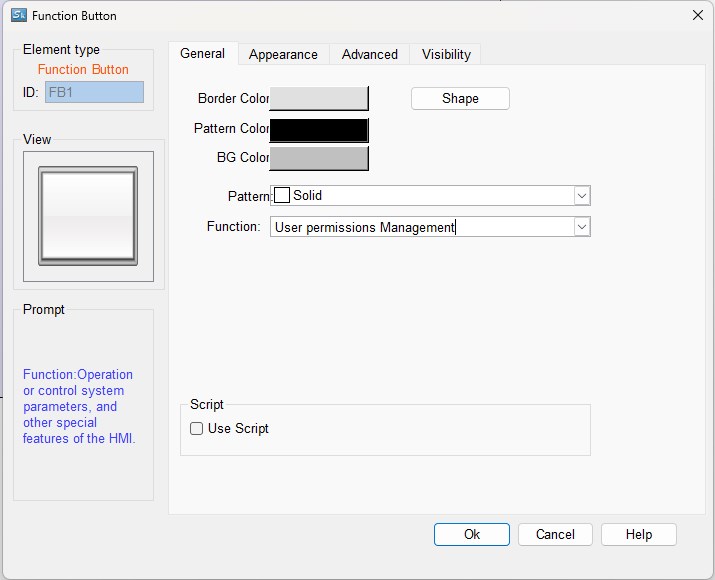
Below is the pop-up window for simulator permission user permission management. You need to log in as an administrator first. Here the administrator can activate or deactivate users. Deactivated users are not visible on the login page.
Using the User Permissions Function in Controls
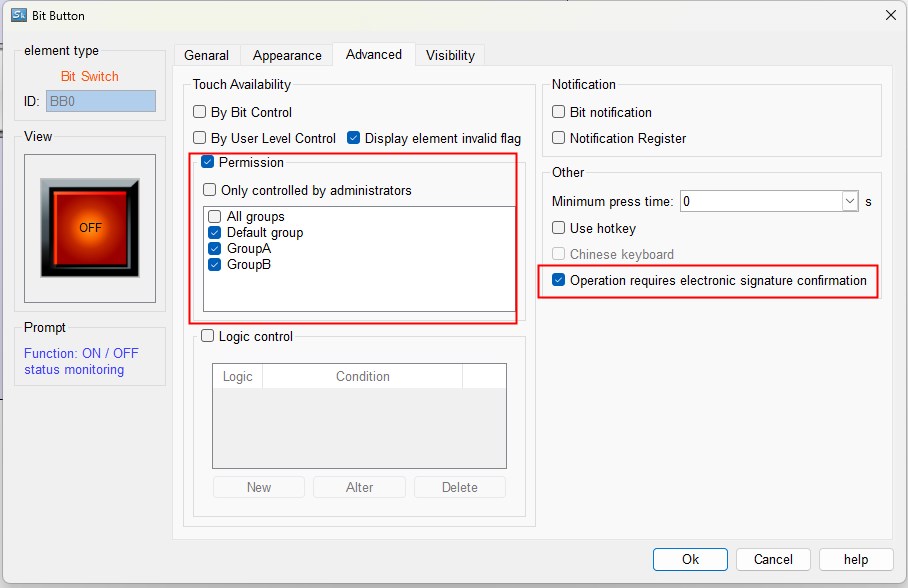
On the Advanced and Display pages, you can check the permission-controlled function, and only the current user who belongs to the checked group can operate or display;
Check the "Operation requires electronic signature confirmation" function. When operating this control, a pop-up window for entering an electronic signature will pop up as shown below. You need to enter the correct password before you can operate.
อ่านเพิ่มเติม

