


1. Software component initialization
ในหน้านี้4 หัวข้อ
Initialize some software components to be in a defined initial state after downloading.
The initialized software component is not a constant and can be changed later.
Please note that the "Software Component Initialization" data must be checked in the download window before it can take effect after this download.
It is independent of program logic and can be defined before or after.
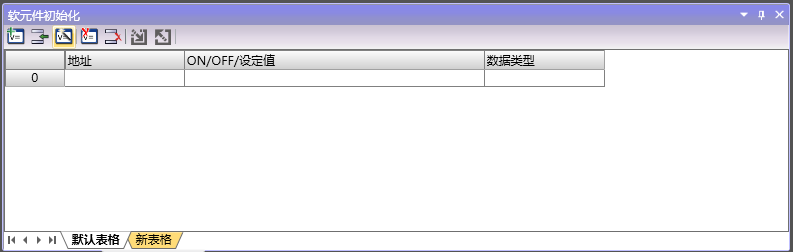
图1 Software component initialization
1.1. Open the window#
To view the Engineering Explorer (if not displayed), please follow these steps:
Click the down arrow under the Window button in the Windows section of the View menu.
Click on 'Element initialize' in the drop-down menu
1.2. Default Table#
There is at least one sub table for software component initialization, which is the default table.
1.3. New Table (General Table)#
After creating the project, a new table is automatically added.
*You can add, rename, or delete any of these tables.
*Software components can be added and removed freely in this table, without affecting the properties and program logic of the software components themselves.
1.4. Function buttons#
The function buttons are arranged on the top left side, listed from left to right as follows.
| Icon | Name | Function |
 |
New Table | Create a new generic table. |
 |
Insert Row | Insert a new row at the selected position. |
 |
Wizard | Guide to implement more operations. |
 |
Delete Table | Delete the currently open generic table, note that the default table cannot be deleted. |
 |
Delete the row where the selected position is located. | |
 |
Import | Import external data into software component initialization. |
 |
Export | Export the current table as external data. |
 |
Search | Find the corresponding address item in the table |
อ่านเพิ่มเติม

