


1. Engineering Resource Manager
ในหน้านี้4 หัวข้อ
To view the Engineering Explorer (if not displayed), please follow these steps:
Click the down arrow under the Window button in the Windows section of the View menu.
Click on "Project Manager" in the drop-down menu.
1.1. 1. Program folder#
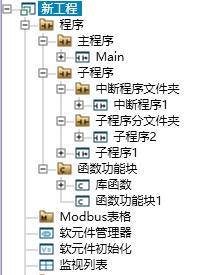
图1 Program folder
*Right click on the "Subroutines" folder and its subfolders to insert a new subroutine.
*Right click on a subroutine in the "Subroutines" folder to copy, cut, or delete it. Selecting a subfolders is equivalent to performing the same operation on all elements within that subfolders. Next, subroutines and subfolders are collectively referred to as "elements".
*Drag any element in the "Subroutines" folder and dock it to another location in the "Subroutines" folder.
*Hold down the shift key and click on any element to continuously select the middle element.
*Hold down the Ctrl key and click on any element to add or exclude it from the selected set.
*The "Function Function Blocks" folder can also perform the same operations on function function blocks as described above.
*The 'Modbus Tables' folder cannot create subfolders.
*Double click on other external elements to open the corresponding function window.
1.2. 2. Command folder#
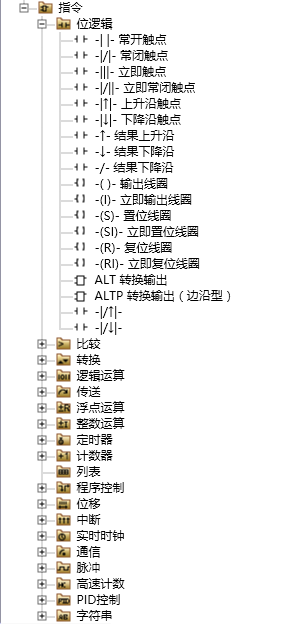
图2 Command folder
After opening the command folder and selecting the command, you can:
*Hovering the mouse pointer over a command displays the command name and description.
*Drag and drop or double-click to insert the instruction into the program.
*Press F1 or right-click on the command, and then select 'Help' from the context menu to display information about the command.
1.3. 3. adjust size of window#
Move the cursor to the right edge, then click and drag the divider cursor.
1.4. 4. Search Engineering Resource Manager#

图3 Search Engineering Resource Manager
Enter the search content and press the Enter key or the magnifying glass button on the right. Only the hit part is displayed below.
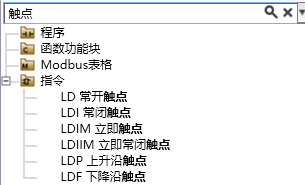
图4 display search result
Click on the X on the right to close the search.
อ่านเพิ่มเติม

